9 min read
How to Blur Sensitive Information in a Screenshot — Safely
Blur and pixelation can be reversed; solid fill cannot. What a web page leaks that you would not think to cover, which method actually destroys the pixels, and why you must flatten before sharing.
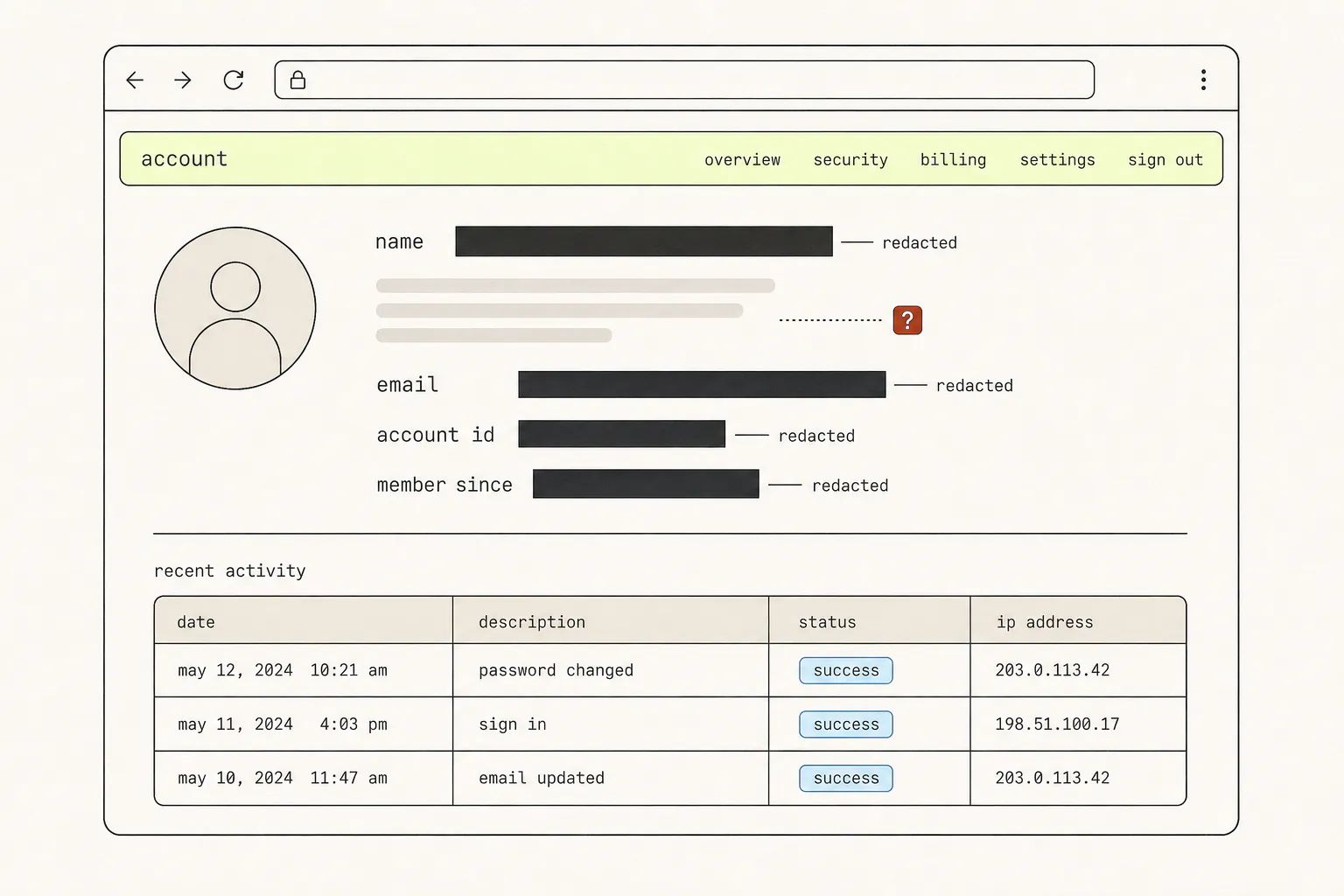
The blur tool looks like an eraser and behaves like a filter. It rearranges the pixels that spell out an email address rather than removing them — and for short, predictable strings like account numbers, that rearrangement can sometimes be undone. If you are covering something that would matter if it got out, it is worth knowing which methods actually delete and which merely obscure.
Blur is not deletion
A Gaussian blur replaces each pixel with a weighted average of its neighbours. That is a mathematical operation with structure, not a randomisation — and where the original content came from a small, known set of possibilities, that structure is enough to work backwards from.
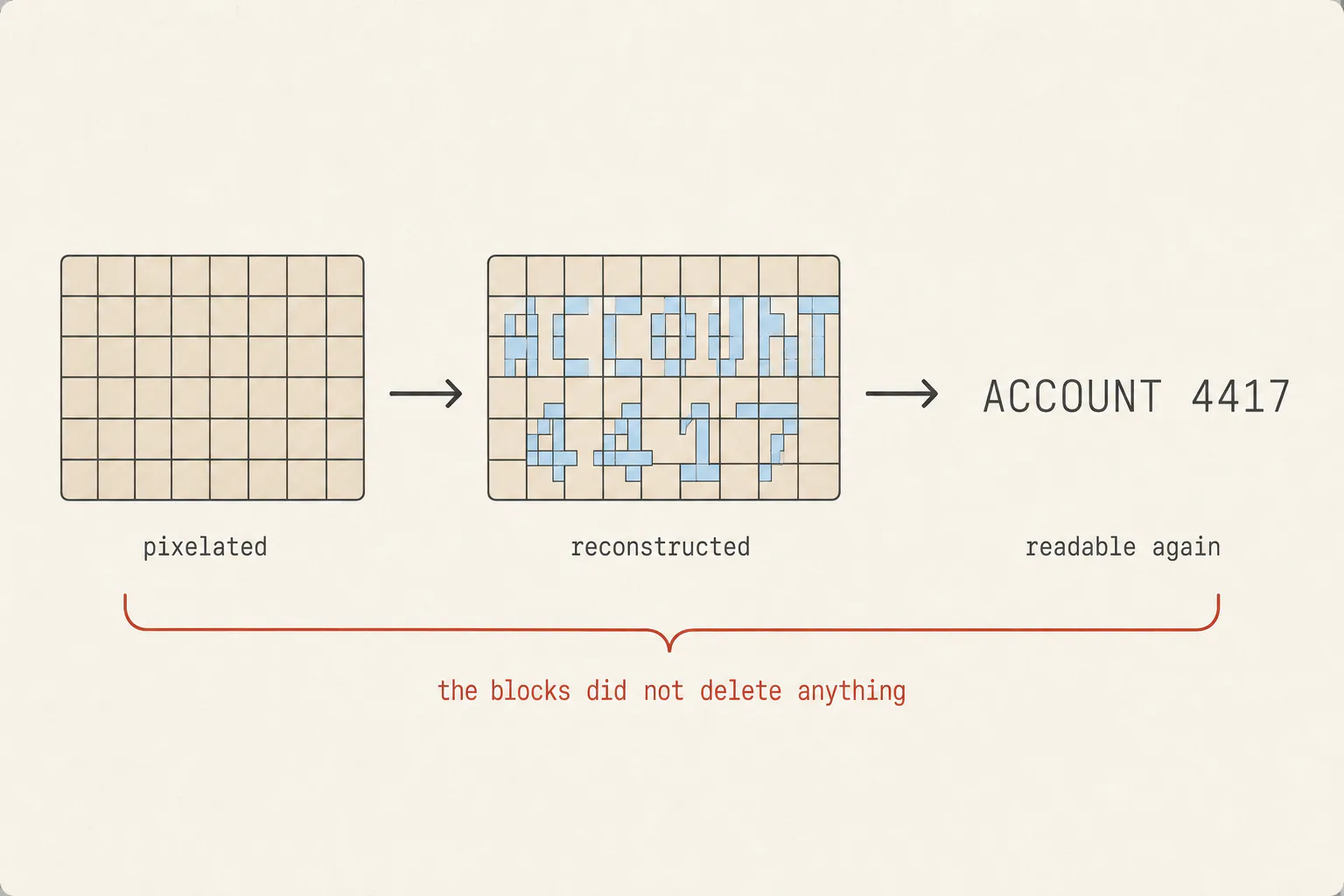
The attack on pixelated text is straightforward: take the font, render every plausible string, apply the same block size, and see which one matches. It works because the search space is small — digits, a name from a known list, a fixed-format account number. It works less well on long free text, and not at all if the block size is large enough that the original characters contribute nothing distinguishable.
Light blur has the same weakness. A three-pixel blur over 14px text leaves plenty of recoverable structure. A blur radius several times the text height genuinely does destroy the information — but “several times the text height” is much heavier than the default most tools ship with, and heavier than most people apply because it looks excessive.
What a web page leaks
Most people cover the obvious field and miss four others, because the browser puts identifying information in places that are not part of the page at all.
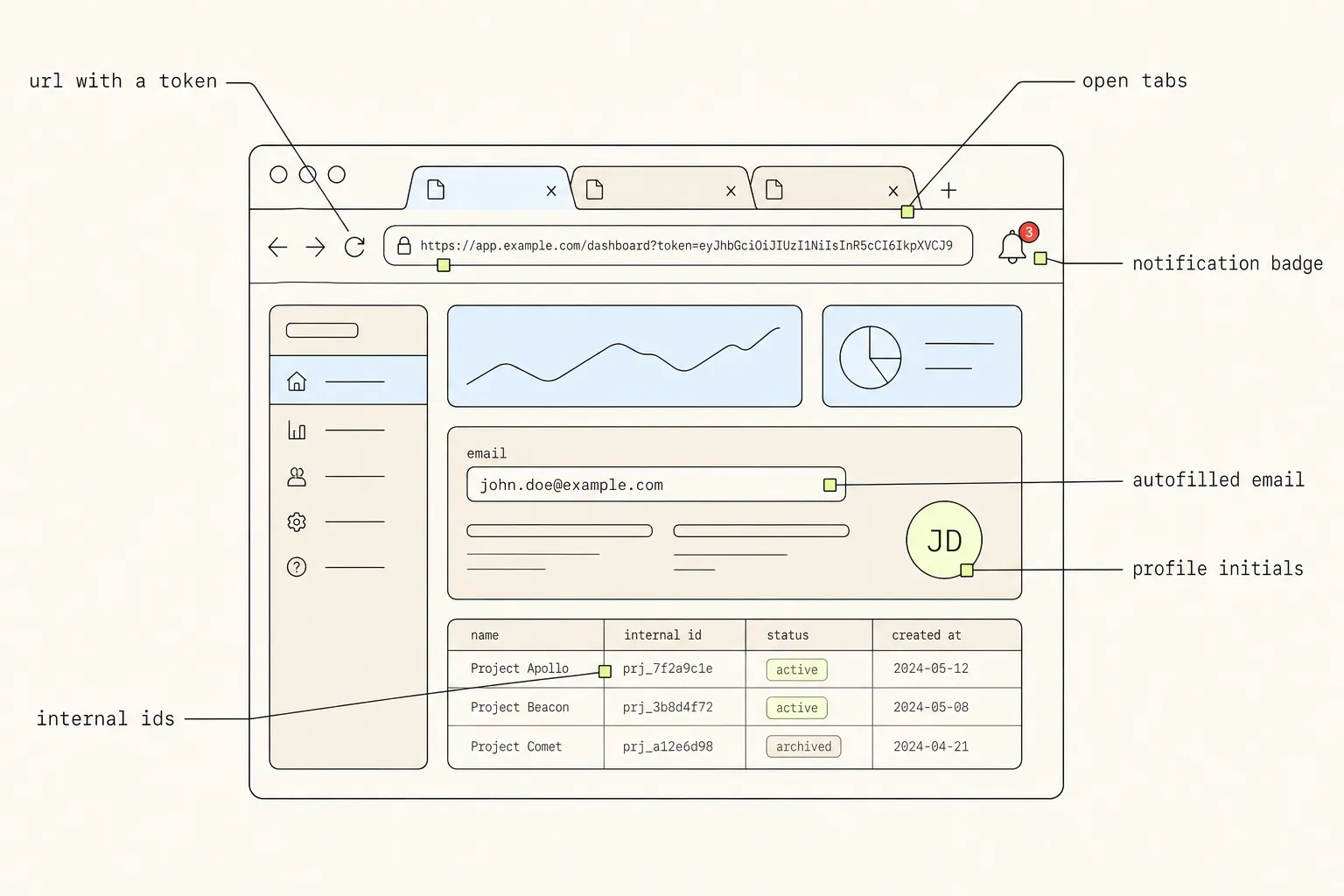
| Where | What it gives away |
|---|---|
| The address bar | Session tokens, reset links, signed URLs, internal hostnames, customer IDs in the path or query string. A one-time link in a screenshot is a one-time link you have shared. |
| The tab strip | Other tabs name the customer, the ticket, the competitor you were researching, the document you had open. |
| Profile chips and avatars | The signed-in user’s name, initials and photo appear in a corner of nearly every application. |
| Notification badges and toasts | A message preview slides in mid-capture and lands in the image with a name and a sentence attached. |
| Autofilled form fields | Fields you thought were empty are populated by the browser and captured full of your own details. |
| IDs and reference numbers | Internal identifiers look meaningless and are often directly addressable by anyone with access to the same system. |
There is a straightforward way to remove five of these at once: capture in a private window, signed out or signed in as a test account, with a single tab open. That is not always possible — sometimes the bug only happens on the real record — but when it is, it beats redacting.
Three methods, ranked
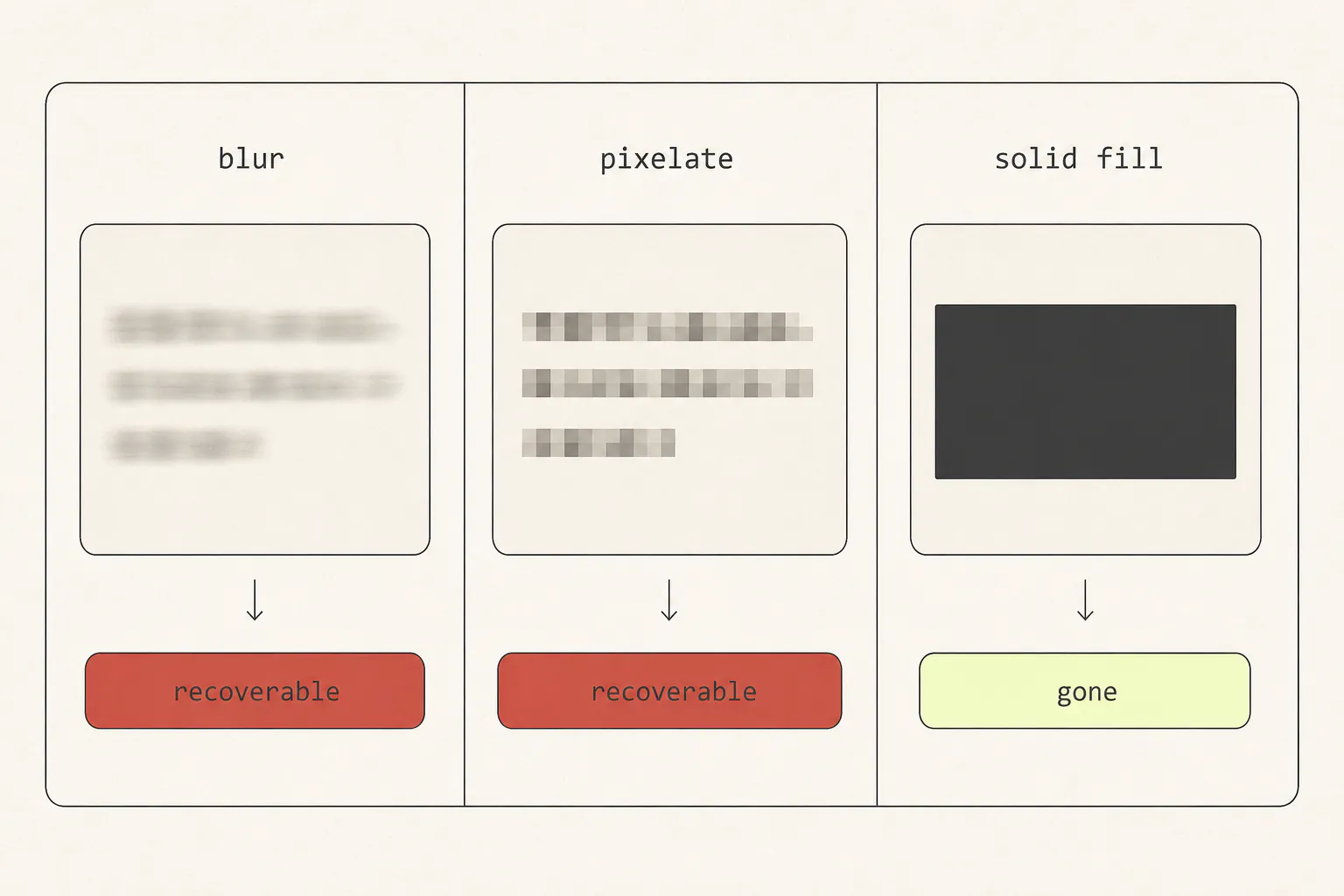
| Method | What it does to the pixels | Safe for |
|---|---|---|
| Blur | Averages each pixel with its neighbours. Reversible in principle at low radii. | De-emphasis. Backgrounds, unrelated content, faces you want softened but not hidden. |
| Pixelate | Averages regions into uniform blocks. Attackable when the content is short and predictable. | Nothing you would mind seeing published. Treat it as visual courtesy, not security. |
| Solid fill | Replaces the pixels with one flat colour. Nothing survives. | Everything that actually matters. |
A solid rectangle also reads more clearly to whoever receives the image. A blurred smear is ambiguous — is that redacted, or is the screenshot just bad? A black bar says deliberately removed, and nobody wastes time squinting at it.
If you must blur
- Use a radius several times the height of the text, not the tool’s default. If you can still tell how many words there were, it is not enough.
- Blur a generous region rather than tracing each word. Word-shaped blurs leak length and spacing, which narrows the search considerably.
- Never blur something that appears unblurred elsewhere in the same image. It happens more than you would think with repeated table columns.
Flatten before you share
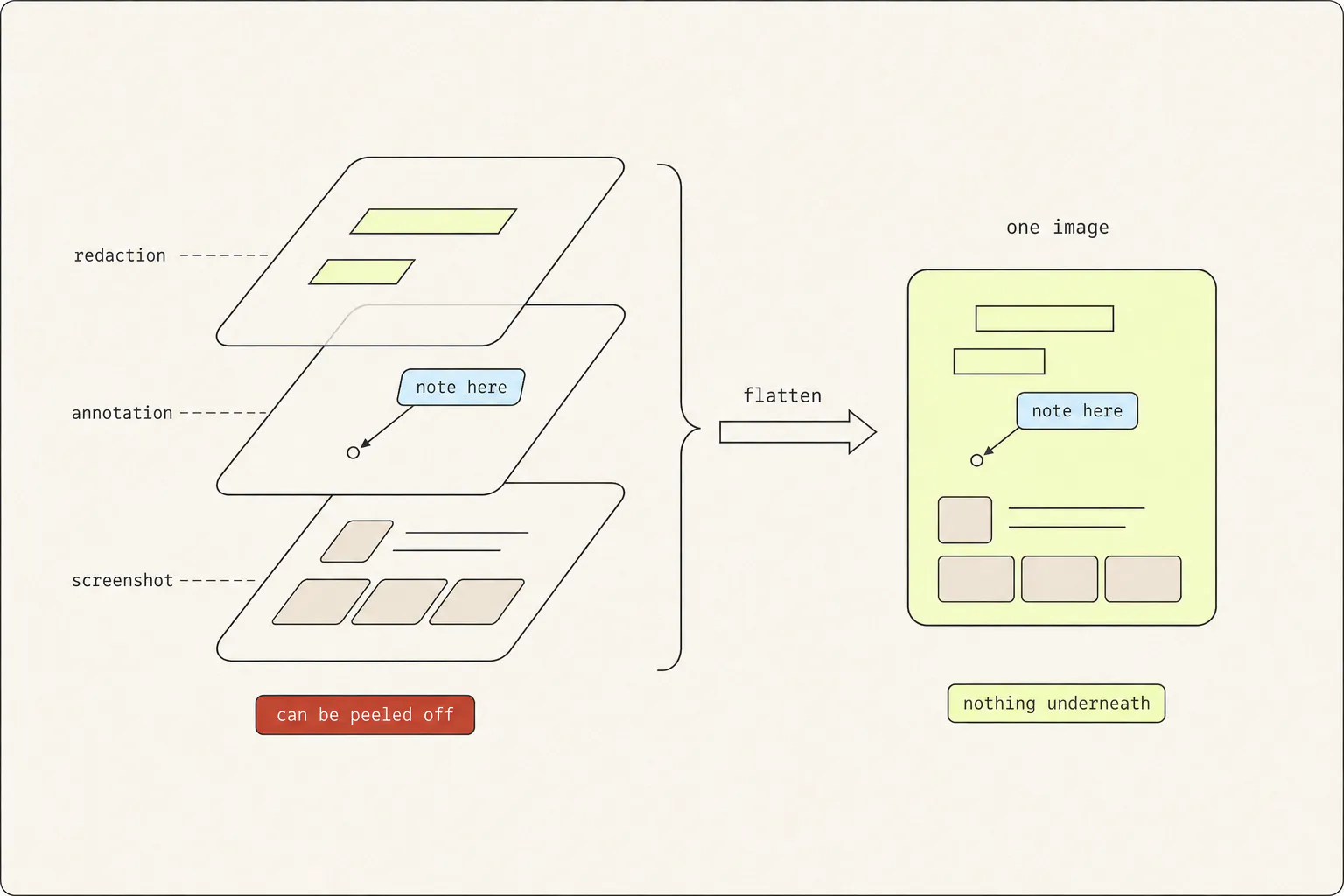
This is the failure that has produced real newspaper stories. A black rectangle drawn in a layered format — a design file, an editable PDF annotation, a document with a shape on top — is an object sitting above the content. Anyone who opens the file can select it and move it. The information underneath was never touched.
Two rules cover it:
- Export to a flat raster format. PNG has no layers. Whatever you drew is now the pixels.
- Never send the working file. Not the design file, not the annotated PDF, not the tool’s project format. Send the export.
Grabby’s annotation editor works this way by design: blur and fill are rasterised into the image when you export, so the PNG that leaves your machine has no separate layer to peel back. The capture also never leaves the browser tab it opened in — there is no upload, and closing the tab discards it.
Crop first — it removes more than it hides
The safest redaction is the one you never have to make. Before covering anything, ask whether that part of the image needs to be in the frame at all.
A screenshot of one broken button does not need the navigation bar with your name in it, the sidebar listing your customers, or the address bar carrying a session token. Crop to the component and one ring of context, and most of the redaction work disappears — cropping deletes pixels, so there is nothing left to recover.
This is the same crop discipline that makes feedback clearer, which is a happy overlap: annotating a screenshot well and redacting it safely both start with removing everything irrelevant.
Cropping is also the one redaction that survives a change of format. A PDF, a copied component and a screenshot all leak different things — and each capture format carries a different amount of the page with it, which is worth knowing before you pick one for something confidential.
How to do it, step by step
- Prepare the page. Where you can, use a private window, a test account, and a single tab. Turn off notifications for a minute — the operating system focus modes exist for exactly this.
- Capture. Full page or region, depending on what you need to show.
- Crop hard. Anything outside the point you are making goes.
- Cover with solid fill. Draw filled rectangles over names, emails, account numbers, addresses, tokens, and any ID that could be looked up. Extend each rectangle a few pixels past the text — ascenders and descenders poking out of a redaction are readable.
- Blur only what you want de-emphasised. Backgrounds, unrelated panels, things that are not secret but are distracting.
- Export as PNG. Flat, lossless, no layers.
- Reopen the export and read it. Full size, not the thumbnail. This is when you notice the email address in the page title, or the row you covered on the wrong line.
The pre-send checklist
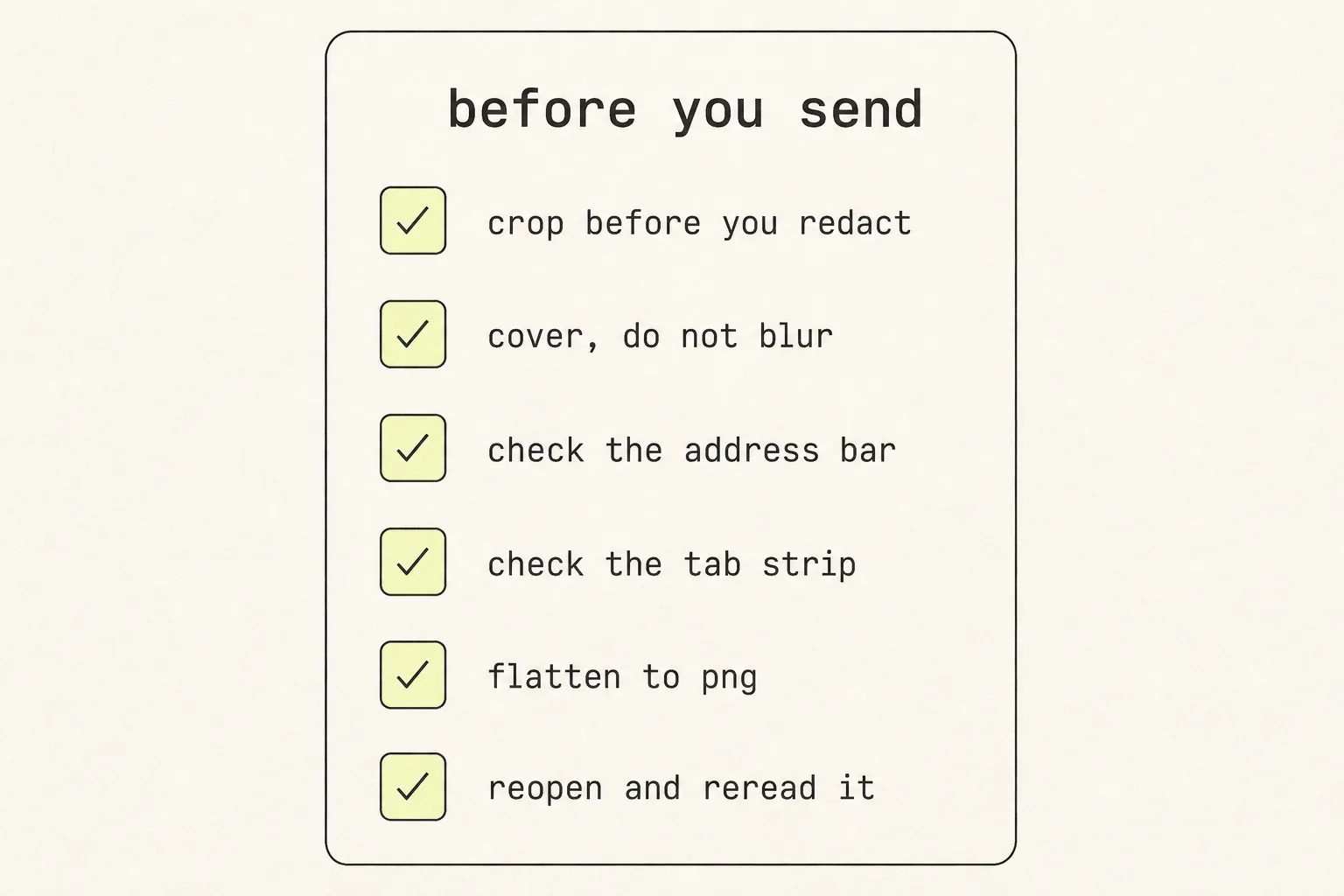
Step seven — reopening the finished file and actually reading it — is the one that catches real mistakes, because you are looking at the artefact rather than at your own intentions about it. It takes about fifteen seconds and it is the difference between a redaction and a near miss.
One last note on where the file goes. Redaction protects against people who receive the image. It does nothing about services that hold it. A screenshot uploaded to a cloud-editing tool exists on that service’s infrastructure, in its backups, and possibly in its logs. For anything from an internal dashboard or a customer record, prefer a tool that keeps the capture local — the difference matters more than which shade of black you drew the box in.
Frequently asked questions
Can blurred text in a screenshot be recovered?
Sometimes, yes. Blur and pixelation are reversible transformations rather than deletions, and where the hidden content is short and predictable — digits, a name from a known set, a fixed-format reference — an attacker can render candidates, apply the same transformation, and compare. Long free text with a heavy blur is far more resistant. Solid fill is not recoverable at all, which is why it is the right default.
Is pixelation safer than blurring?
Not meaningfully. Both average a region rather than replacing it, and both have published attacks. Pixelation is slightly worse in one respect: the block grid gives an attacker a fixed, known transformation to reproduce exactly. Treat either as visual courtesy, not as security.
What should I always redact in a screenshot of a web app?
Real names, email addresses, phone numbers, postal addresses, account and order numbers, API keys and tokens, and any URL containing a session or reset parameter. Also check the tab strip, notification toasts, autofilled fields, and the profile chip in the corner — those are outside the content area and are the ones people forget.
Does cropping remove the data or just hide it?
It removes it. Cropping discards the pixels outside the new bounds, so nothing is left to recover — which is why cropping is the safest redaction available. The one caveat is metadata: image files can carry EXIF and other fields that survive a crop, so for anything genuinely sensitive, check what your tool writes into the file.
How do I redact a PDF properly?
Use a tool that offers a redaction function specifically, which removes the underlying content and then draws the box. A black rectangle added with an annotation or markup tool sits on top of text that is still selectable and extractable. To check which you have, try selecting the covered region and pasting it elsewhere — if text appears, it was never removed. Alternatively, screenshot the PDF page, redact the image, and share that.
Is it safe to use an online screenshot editor for sensitive images?
It depends entirely on whether the image is uploaded. Browser-based editors that process the file locally never transmit it; services that render server-side hold a copy, and it may persist in backups and logs after you delete it. For screenshots of internal dashboards or customer data, use a tool that keeps everything on your machine — and check, rather than assuming, which kind you have.
Keep reading
9 min read
How to Annotate a Website Screenshot So Feedback Lands
Most screenshot feedback fails not because the arrow was badly drawn, but because the image did not say which thing, in what state, at what width. Here is the craft of it.
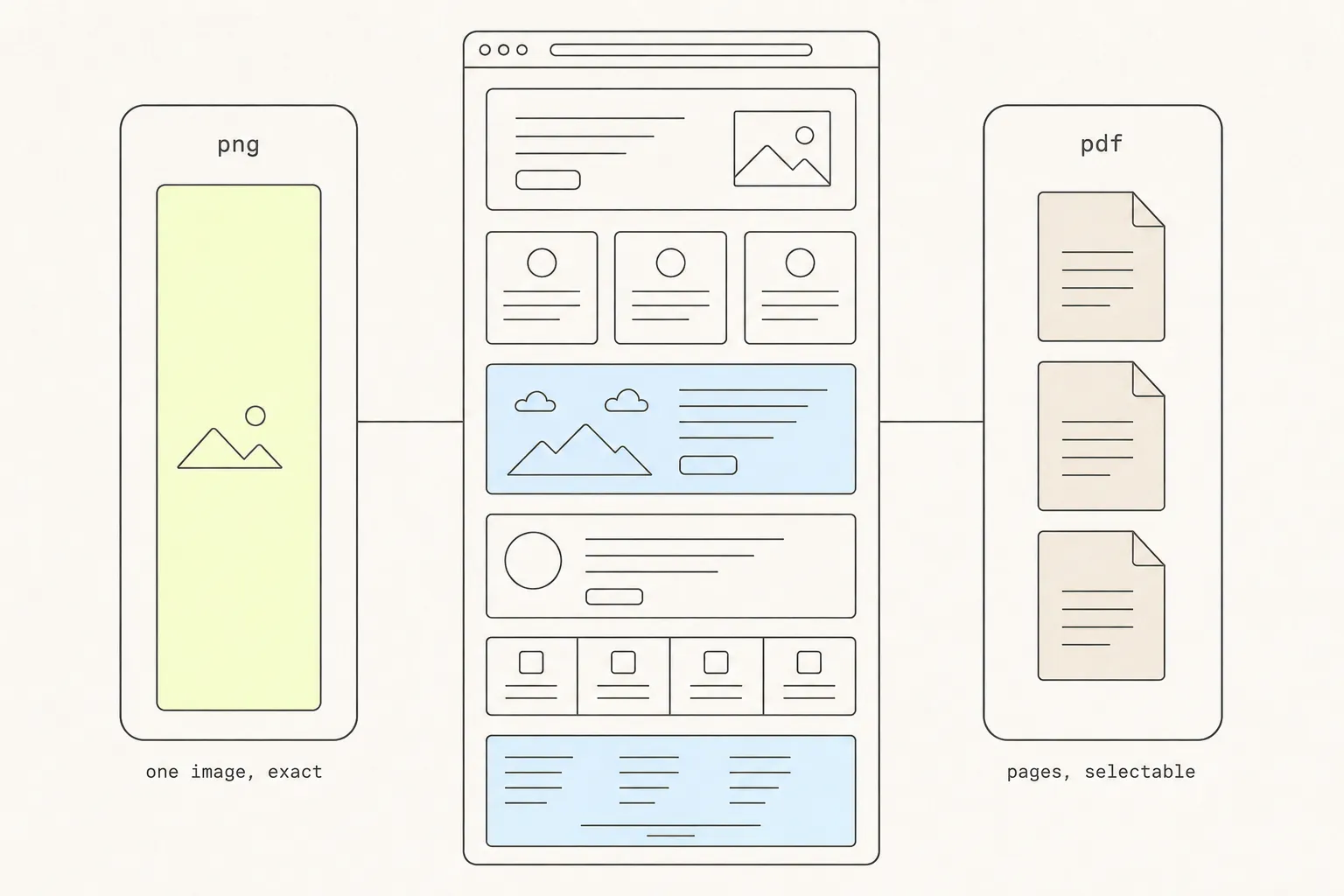
8 min read
Save a Web Page as PNG or PDF? How to Choose
Both routes end in a file, and one of them is a picture wearing a document’s file extension. Knowing which you have determines whether anyone can search it, sign it, or print it.
9 min read
How to Capture a Web Page: Screenshots, PDFs, and Code
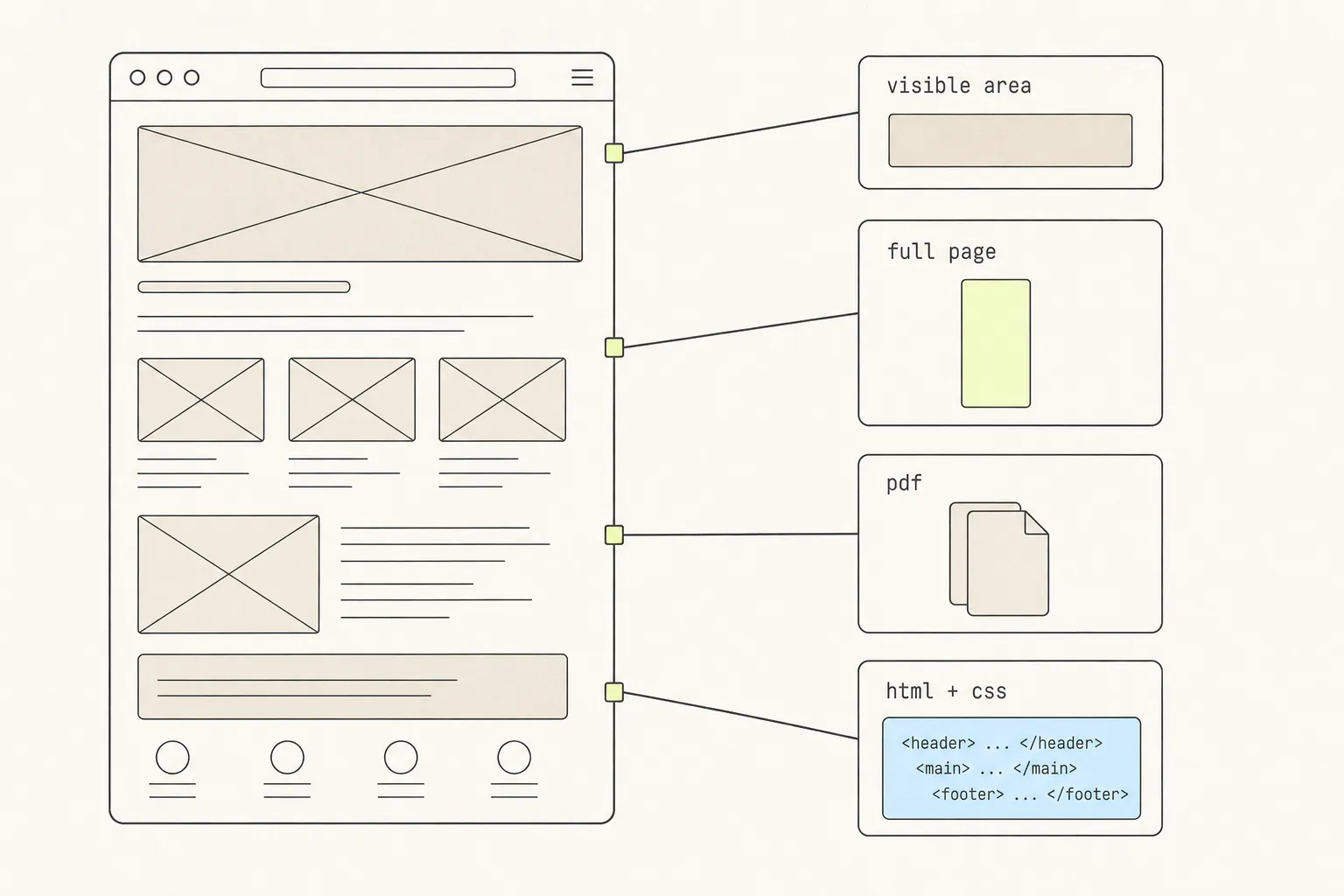
A screenshot, a PDF and a copied component are three different answers to “save this page”. Here is what each one keeps, what each one silently throws away, and how to choose.