9 min read
How to Capture a Web Page: Screenshots, PDFs, and Code
Four ways to capture a web page — visible screenshot, full-page image, PDF, and live HTML/CSS — and how to pick the one that survives what you need to do next.
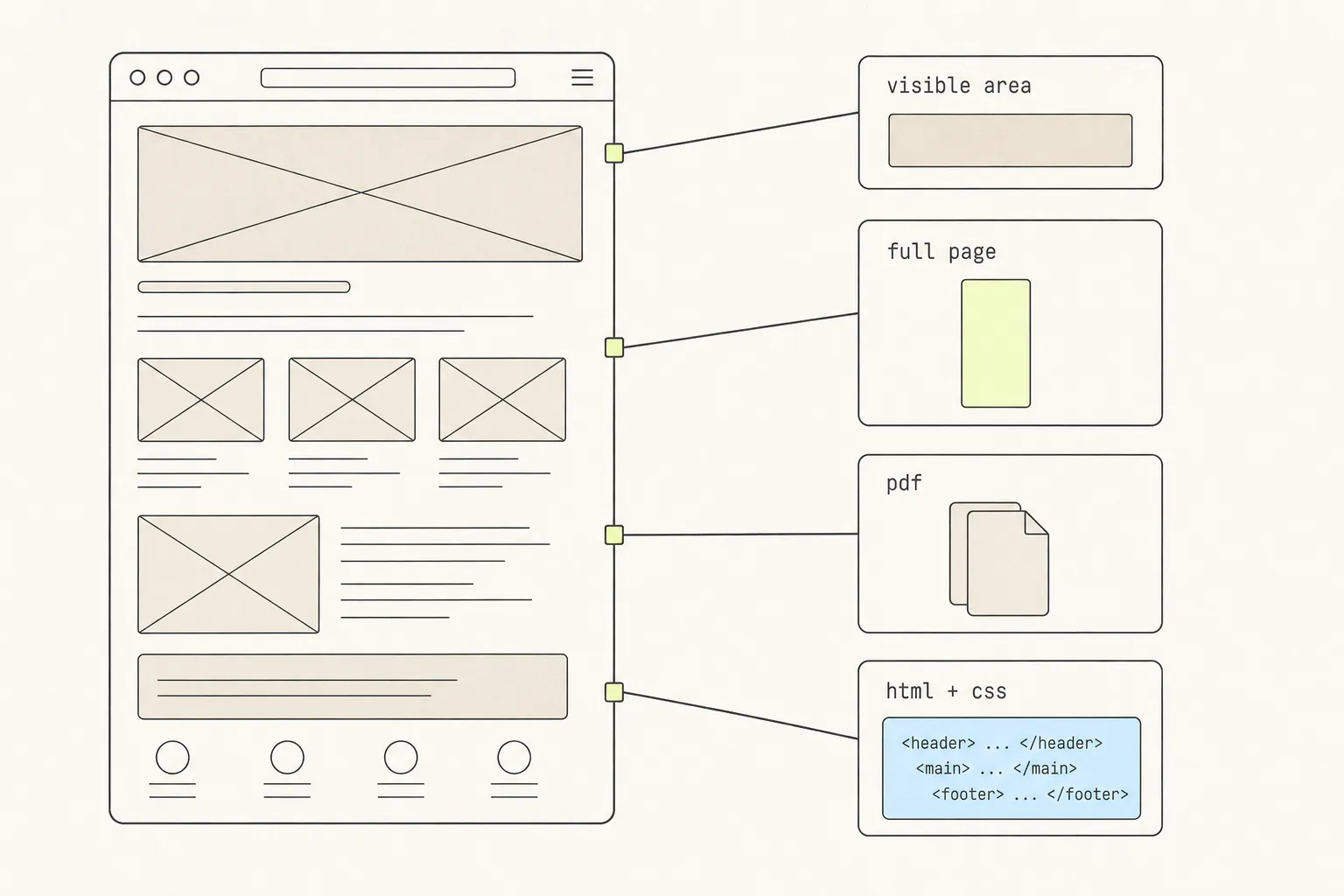
“Save this page” sounds like one request. It is at least four, and picking the wrong one is why you end up re-doing the work: a screenshot that can’t be searched, a PDF that cut a chart in half, a copied component that arrives with none of its styling. This guide is the decision you actually have to make, and the trade-offs behind it.
Four things people mean by “capture”
When someone says they want to capture a web page, they mean one of these four, and they rarely say which:
- The visible area. What is on screen right now — Cmd+Shift+4 on macOS, Win+Shift+S on Windows. Fast, universal, and it stops at the bottom of your monitor.
- The full page. The entire scrollable document as one tall image, including everything below the fold. This is the one that needs a tool, because no operating system screenshot key knows the page continues past the window.
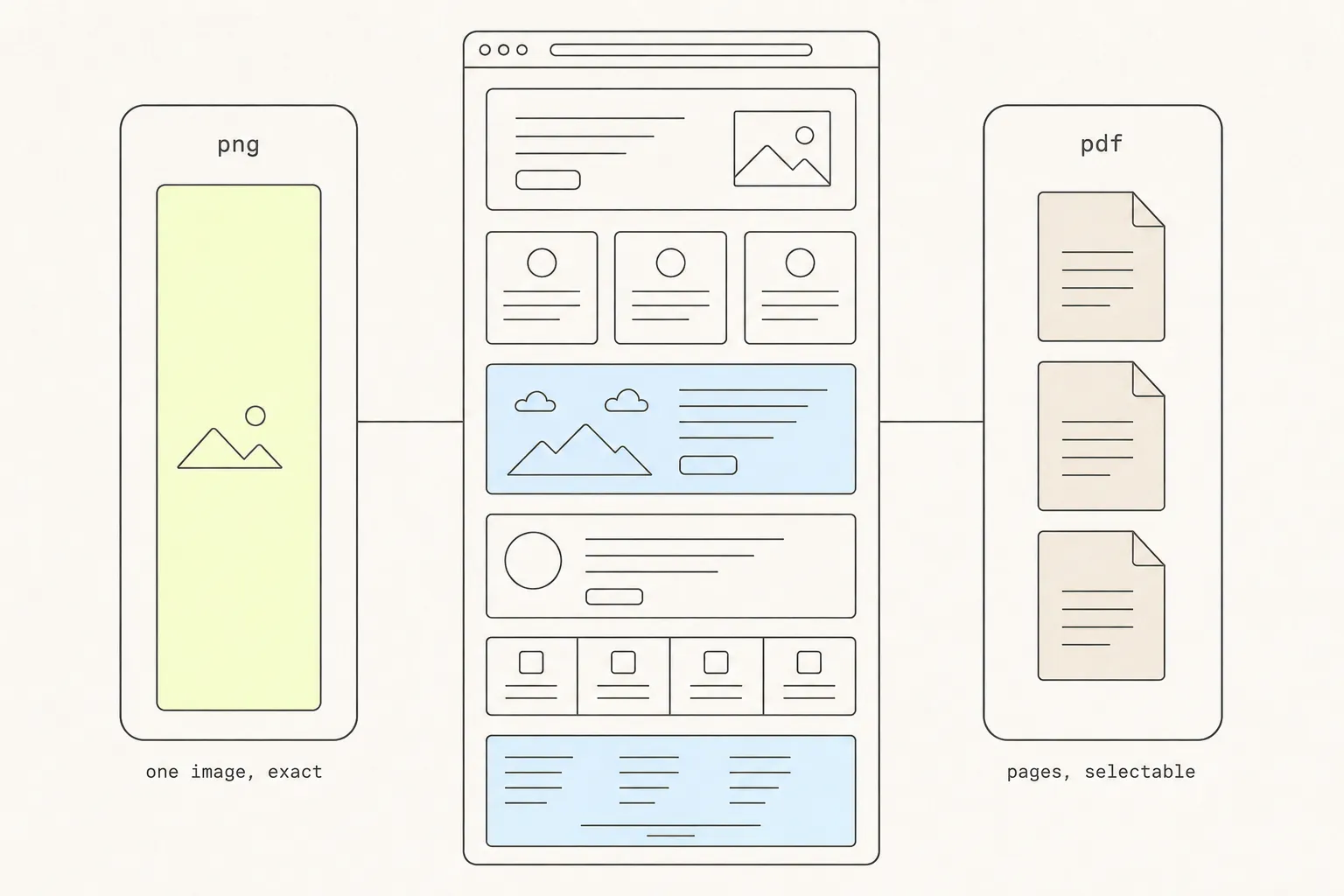
- A PDF. Either a paginated document produced by the browser’s print engine, or a single very tall page holding one screenshot. These sound similar and behave nothing alike.
- The code. The actual HTML and CSS behind an element, so you can run it, resize it, restyle it, or paste it into a project.
The first three produce pixels or paper. The fourth produces something that is still alive. That distinction drives everything below.
What each format actually keeps
Every capture format is lossy — the question is which loss you can afford. Here is the honest matrix. “PDF” below means a browser print-to-PDF, which is what most people get when they hit Cmd+P.
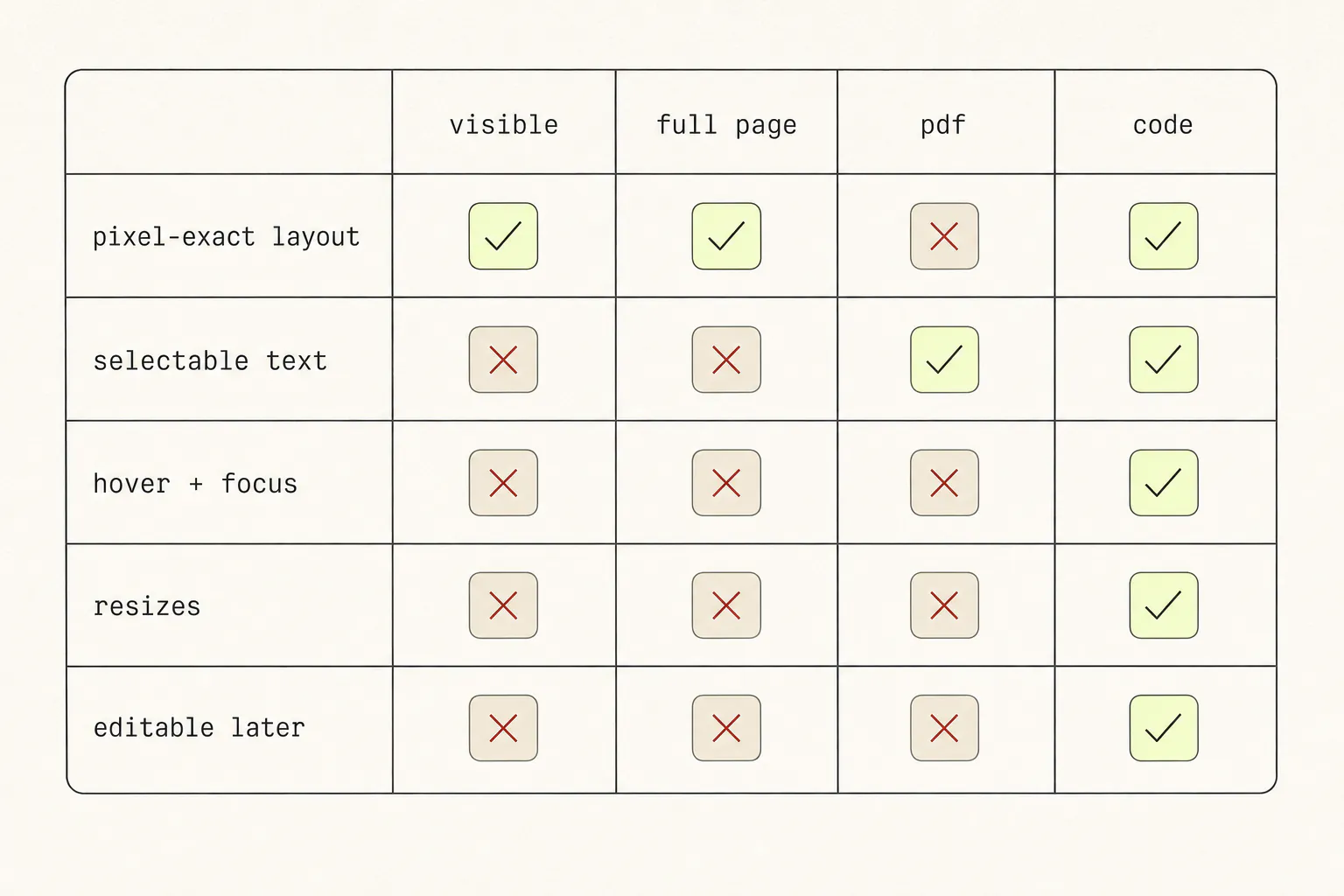
| What you lose | How it shows up later |
|---|---|
| Selectable text (screenshots) | Nobody can search the capture, quote from it, or run it through a translator. Screen readers get nothing but your alt text. |
| Pixel fidelity (print-to-PDF) | Print stylesheets hide navigation, drop backgrounds, and reflow columns. The PDF is a legitimate rendering of the page — just not the one you were looking at. |
| Interactive state (all image formats) | A screenshot is one frame. The dropdown you photographed open is open forever; the hover state you never triggered is gone forever. |
| Responsive behaviour (all image formats) | A capture taken at 1440px wide tells you nothing about what the component does at 375px. |
The third row bites hardest, because a state you never triggered cannot be recovered from the file afterwards. Dropdowns, tooltips and hover styles all close the moment you reach for the shortcut, and getting one of them into a screenshot at all takes a specific trick.
The viewport problem
Every screenshot tool has to solve one structural issue: your window is small and the document is not. The browser paints only what fits in the viewport, so a capture that works by photographing the screen can only ever return the part you happen to be looking at.
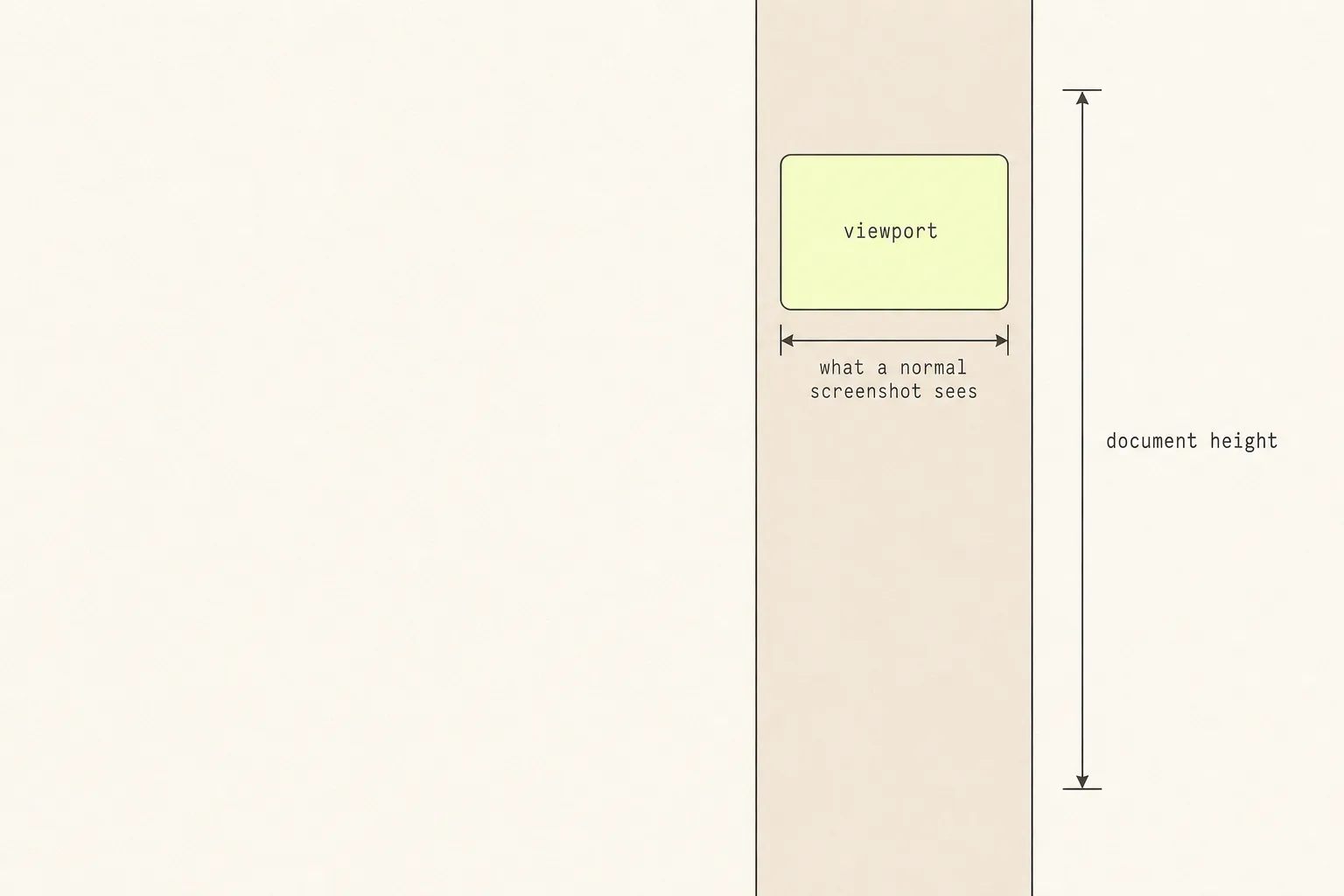
There are only two ways around this, and they fail differently.
Resize and snap
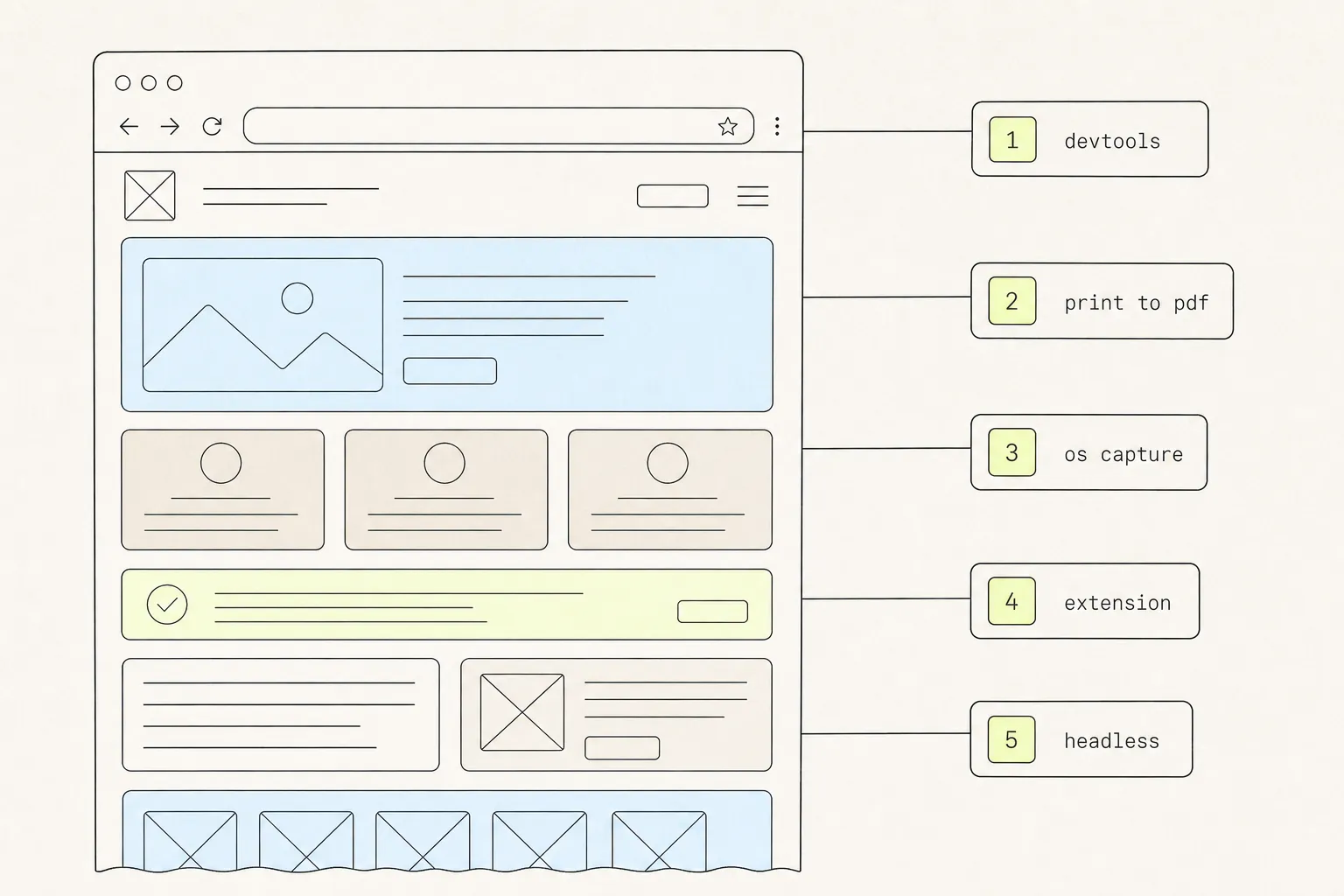
Tell the renderer the viewport is now the full height of the document, paint once, and take a single picture. This is what Chrome DevTools’ Capture full size screenshot does — one of five routes to a full-page screenshot in Chrome, and the fastest when it works. It is seamless until the page is tall enough to exceed the compositor’s maximum texture size, at which point it silently truncates or fails. It also confuses any layout written in viewport units, because 100vh is suddenly the whole document.
Scroll and stitch
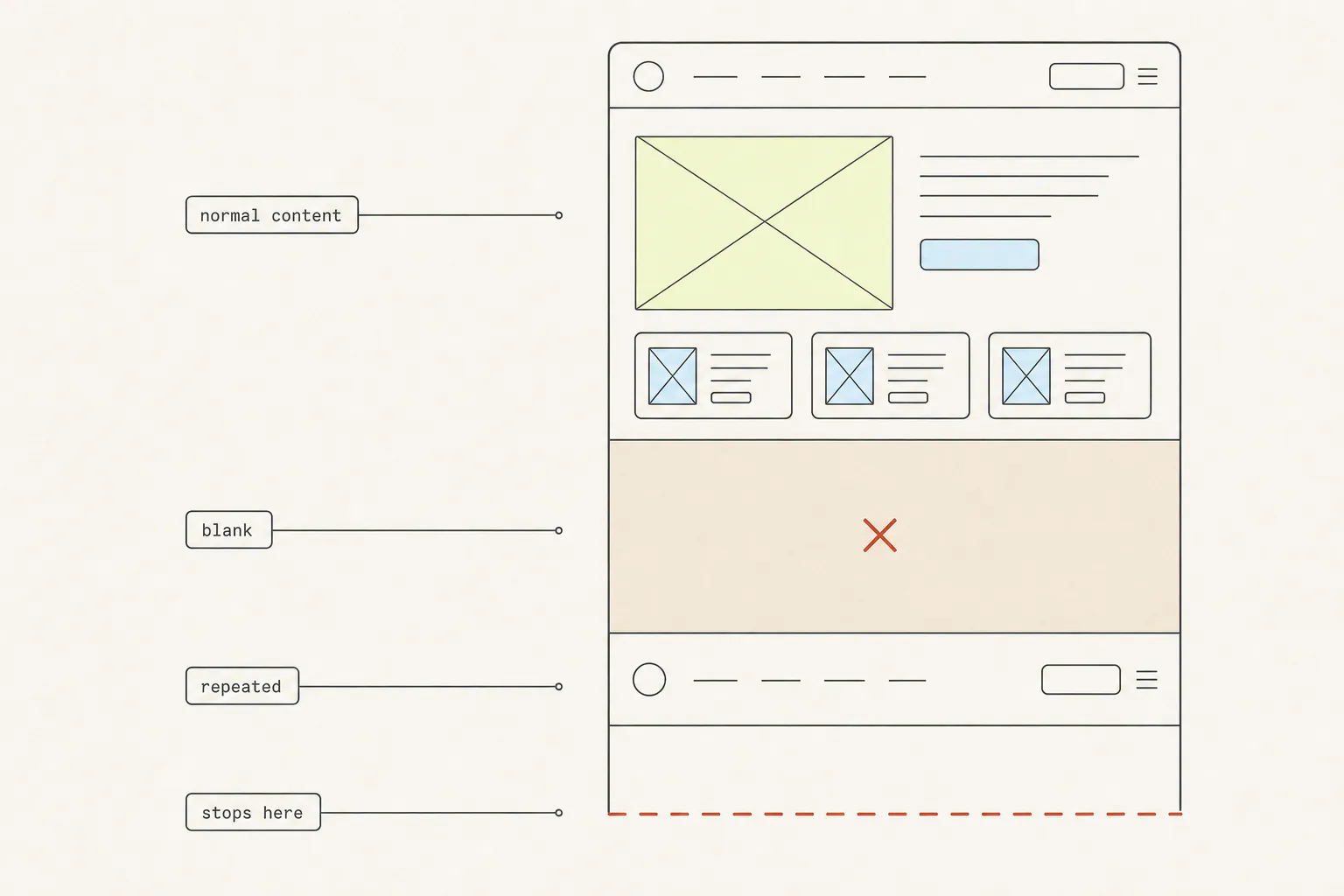
Photograph the viewport, scroll down exactly one viewport, photograph again, repeat, then composite the tiles into one image. This is how browser extensions work, Grabby included. It has no practical height limit and it triggers lazy-loaded content on the way down. Its weakness is seams: if the arithmetic rounds the wrong way you get hairline gaps, and if the page has a fixed header you get it repeated in every tile.
Both failure modes are common enough to have their own article — why full-page screenshots come back with missing content walks through blank images, repeated headers and captures that stop halfway.
Reflowed or photographed?
This is the distinction that catches people out most often, because both routes end in a file with .pdf on the end.
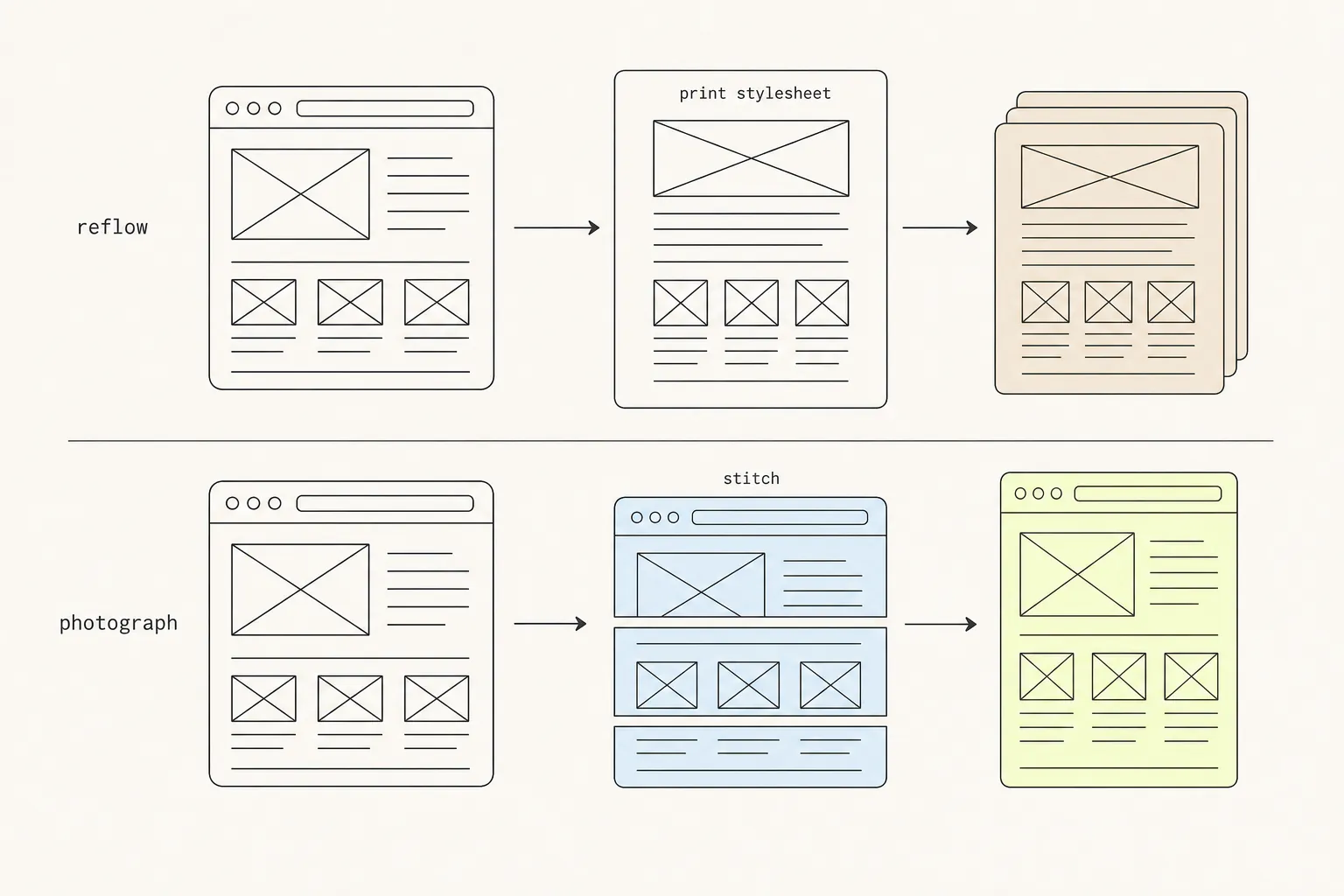
- Print to PDF hands the page to the browser’s print engine. Any CSS in a
@media printblock applies, the layout re-runs at paper width, and the result is paginated. You get selectable, searchable text and a small file. You also get whatever the site’s designers decided a printed version should look like, which on many sites is “no navigation, no background colours, and a footer nobody has looked at since 2019”. - Screenshot to PDF takes the stitched image and wraps it in a PDF whose single page is the size of the picture. Nothing re-runs. What you saw is what is in the file, exactly — but it is an image, so there is no text to select and the file is far larger.
The full PNG-versus-PDF comparison covers the size maths and the page-break traps in detail.
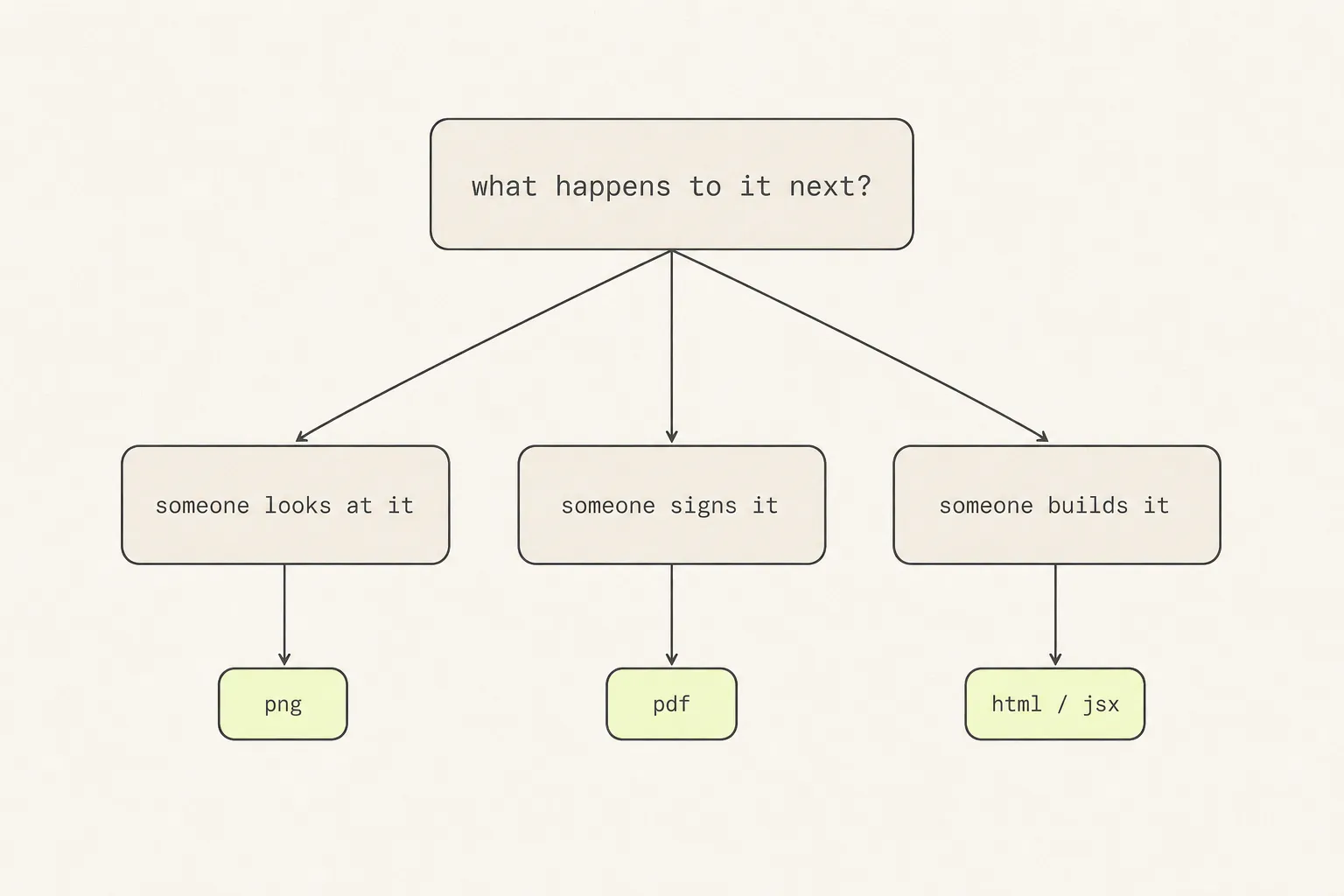
Choosing: what happens to it next?
Skip the question of what format you want. Ask what the person receiving it needs to do, and the format picks itself.
| What happens next | Capture as | Why |
|---|---|---|
| Someone looks at it and comments | Full-page PNG | Exact, annotatable, pastes into any chat or ticket without a viewer. |
| It goes in a report, contract or archive | Print-to-PDF | Searchable text, small file, paginates for paper, and reads as a document rather than a picture. |
| It has to survive being read in five years | PDF plus a full-page PNG | The PDF stays searchable; the PNG proves what the page looked like when the print stylesheet inevitably changes. |
| Someone rebuilds it | HTML / JSX | A picture of a component is a specification you have to reverse-engineer. The code is the component. |
| You are collecting it as reference | Both — image to browse, code to dissect | You will want to skim it visually and, occasionally, pull one piece apart. |
That last row is the one people get wrong most often, because a reference collection is the case where you cannot know in advance what you will need. If you are capturing things to look at again later, how you file them decides whether you ever reopen them.
Capture is step one
Almost nobody wants a raw capture. They want a capture with the irrelevant 80% cropped away, an arrow pointing at the thing they mean, and the customer’s email address covered up. Treating capture and edit as one motion rather than two applications saves more time than any individual tool choice.
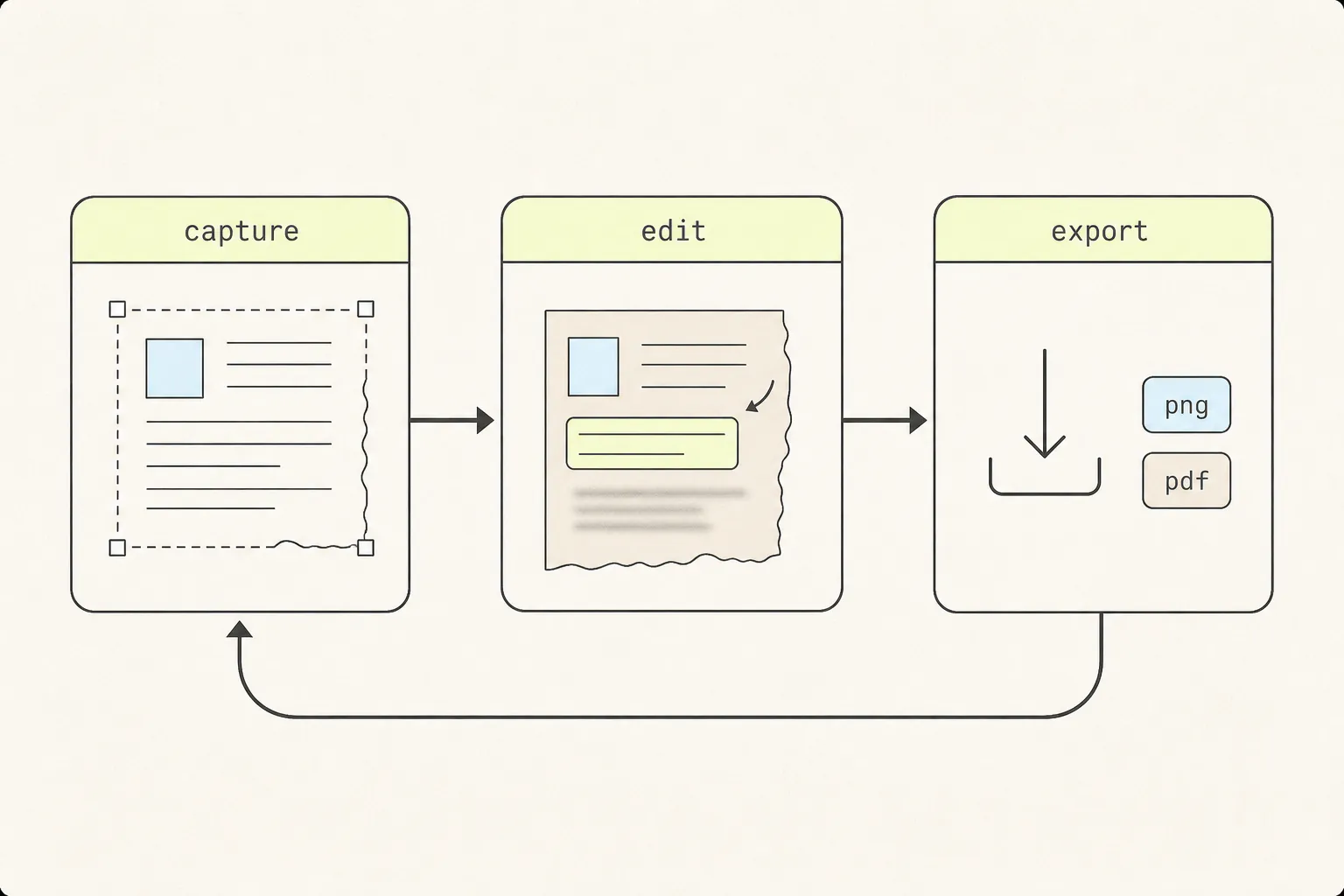
Grabby is built around that loop. The full-page screenshot opens straight into an editor tab with crop, arrows, boxes, text, blur and stickers, an undo stack, and PNG or PDF export — and the image never leaves your machine, because the capture lives in that tab’s canvas rather than on a server. What to do in that editor is its own craft: annotating a screenshot so the feedback actually lands and redacting one safely before you share it are the two skills worth learning.
Where each method breaks
Every route below is genuinely useful. Knowing the edge each one falls off is what stops you blaming the page.
| Method | Falls over on |
|---|---|
| OS screenshot key | Anything below the fold. It has no concept of a document, only a screen. |
| DevTools full-size capture | Very tall pages, where the render target exceeds Chrome’s maximum texture size, and layouts built on viewport units. |
| Print to PDF | Sites with an opinionated print stylesheet, and anything where a page break lands mid-chart. |
| Scroll-and-stitch extensions | Fixed and sticky elements that repeat in every tile, and virtualised lists that only ever have twenty rows in the DOM. |
| Copying code from DevTools | Styles that live anywhere other than the element: custom-property chains, @font-face rules, hover states, pseudo-elements, shadow DOM. |
That last row is the one developers hit hardest. Copy → Outer HTML gives you a tree with no styling, and copying computed styles gives you hundreds of resolved properties that still miss :hover and @font-face entirely. There is a whole article on copying the HTML and CSS of an element properly, and a follow-on for turning that into a React component.
The short answer
If someone is going to look at it, take a full-page PNG. If someone is going to file it, print it to PDF. If someone is going to rebuild it, capture the code — a screenshot of a component is a specification written in the hardest possible language.
And whichever you pick, spend the extra fifteen seconds on the crop and the redaction. The difference between a capture that gets acted on and one that gets a “which bit do you mean?” reply is almost never the capture method.
Frequently asked questions
What is the difference between saving a web page and capturing it?
Saving (Cmd+S) writes the page’s HTML and assets to disk so it can be reopened in a browser. It keeps the page functional but depends on the assets downloading correctly, and it often breaks on sites that build their content with JavaScript. Capturing produces a fixed artefact — an image, a PDF, or an extracted component — that does not depend on the original site continuing to exist.
Can I capture a page that requires a login?
Yes, if the capture happens in your own browser session, which is the case for operating-system screenshots, DevTools, print-to-PDF and extensions. Server-side screenshot services cannot see a page behind your login unless you hand them credentials, which is rarely a good idea. Anything captured from a logged-in page deserves a redaction pass before it leaves your machine.
Why does my capture look different from what I saw?
Three usual causes. The tool used print-to-PDF, so a print stylesheet changed the layout. The page uses viewport units and the tool resized the viewport to capture it. Or the capture triggered lazy-loading and animations that had already finished running when you looked at the page. The first two are format choices; the third is a timing problem.
Is it legal to capture someone else’s web page?
Taking a screenshot for your own reference, for a bug report, or for commentary is routine and generally uncontroversial. Republishing someone’s page wholesale, or lifting their copy, logos and photography into your own product, is not — that is their content and their brand. The useful line for design work is that layout techniques and CSS approaches are ideas you are free to learn from, while the specific words, images and identity on the page are not yours to take. We are not lawyers, and local law varies.
What is the best format for a bug report?
A cropped full-page PNG with the URL and the viewport width visible in the image. The crop tells the developer where to look, the PNG guarantees they see what you saw, and the URL and width save the round trip where they cannot reproduce it because they are on a different screen size.
Keep reading
9 min read
How to Take a Full-Page Screenshot in Chrome: 5 Methods, Tested
Chrome will capture an entire scrolling page without any extension at all. It just hides the command, and gives up on pages past a certain height. Here are five routes and where each one stops working.
11 min read
Why Your Full-Page Screenshot Is Missing Content
You captured the whole page and got holes in it. Every one of those holes has a specific technical cause, and four of the five are fixable in about ten seconds once you know which one you are looking at.
8 min read
Save a Web Page as PNG or PDF? How to Choose
Both routes end in a file, and one of them is a picture wearing a document’s file extension. Knowing which you have determines whether anyone can search it, sign it, or print it.