8 min read
Save a Web Page as PNG or PDF? How to Choose
Print-to-PDF reflows the page and keeps text selectable. Screenshot-to-PDF keeps the design exactly. Which to use, the size limits of each, and how to stop a page break cutting a chart in half.
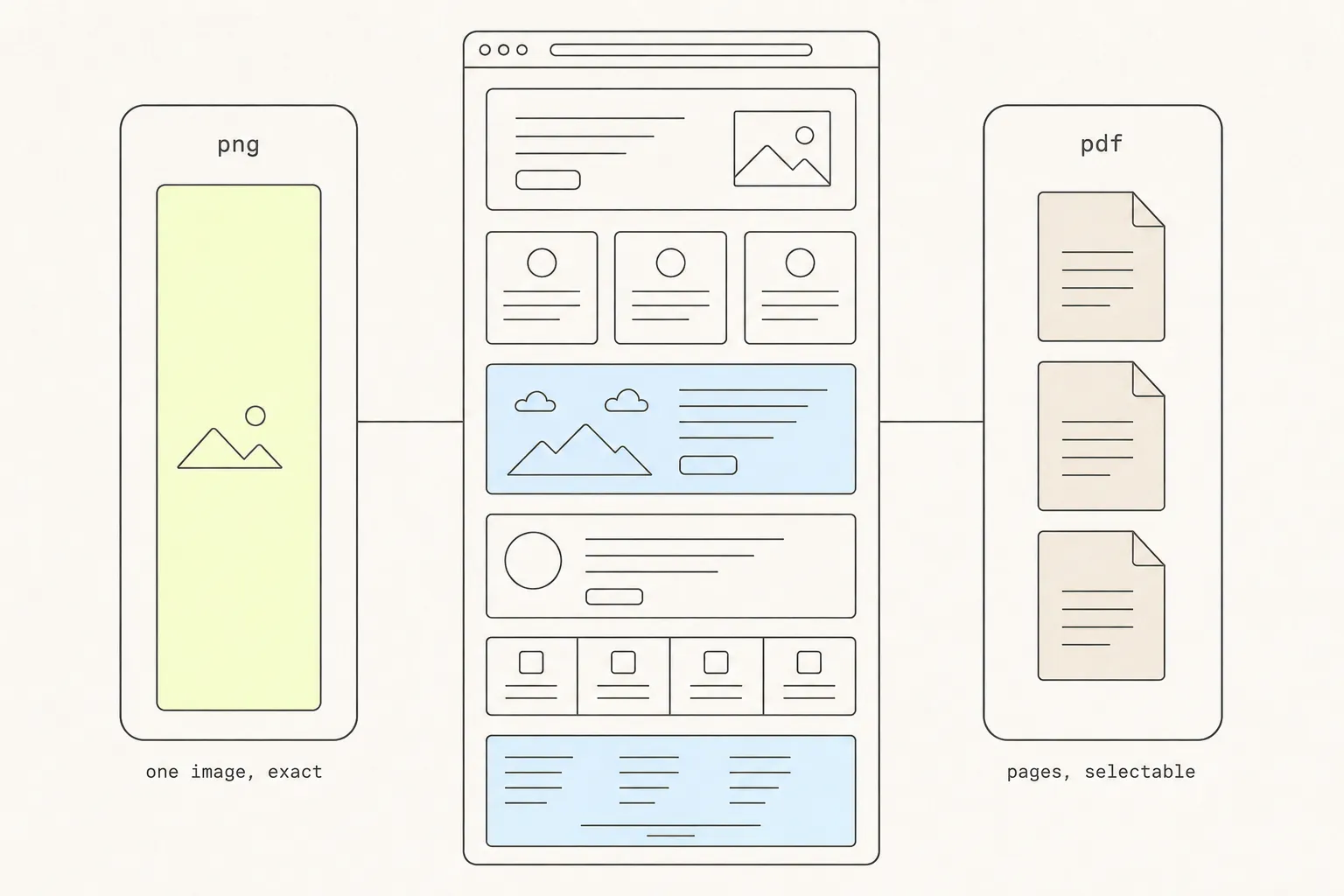
The choice between saving a web page as an image or as a PDF looks like a preference. It is not — the two formats keep different halves of the page, and one of the two routes to a PDF quietly re-lays-out the page before you ever see the file. Getting this wrong is how you end up with a “document” nobody can search or a “screenshot” that looks nothing like the site.
There are two kinds of PDF, and they behave nothing alike
This is the distinction that causes most of the confusion, because both files end in .pdf and open in the same viewer.
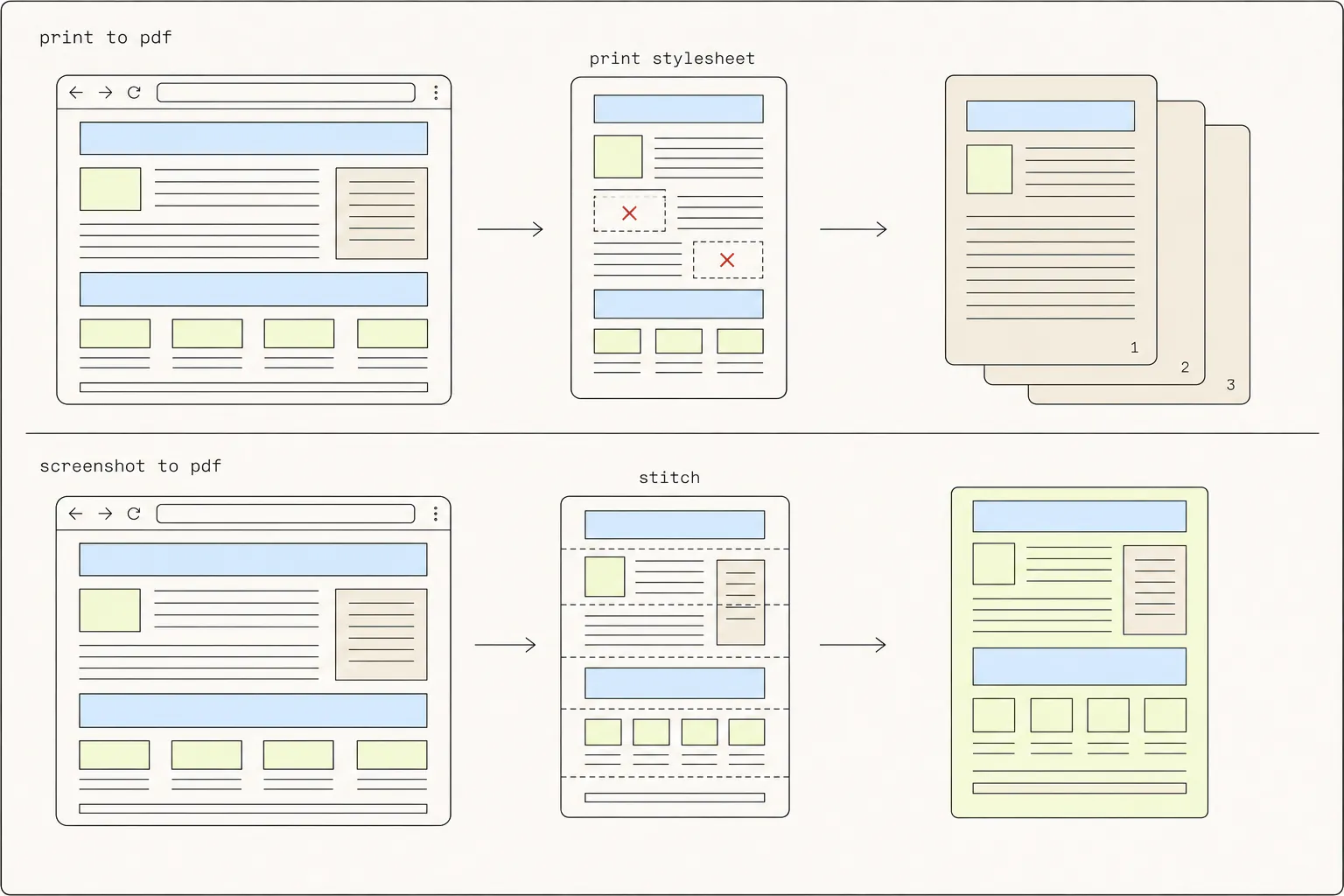
| Print-to-PDF | Screenshot-to-PDF | |
|---|---|---|
| What it does | Re-runs the layout for paper | Wraps a captured image |
| Text | Selectable and searchable | Pixels — nothing to select |
| Looks like the site | Often not | Exactly |
| Pages | Many, paginated | One, as tall as the capture |
| Typical size for a long page | Hundreds of KB | Several MB |
| Accessible to a screen reader | Yes, if the page was | No |
When PNG is right
Choose PNG when the appearance is the point:
- Design review and feedback. You need the recipient to see precisely what you saw, including the thing that looks wrong.
- Bug reports. A PDF that reflowed the layout is actively misleading in a bug report — it can hide the bug, or invent a new one.
- Anything you are going to annotate. Arrows, boxes and blur are image operations. Annotating a PDF means a PDF editor.
- Pasting into a chat, a ticket or a document. Images embed inline everywhere. PDFs become attachments people have to open.
- Proof of what a page looked like on a given day. A print-to-PDF is a rendering; a screenshot is a photograph.
Use PNG rather than JPEG for anything containing an interface. Screenshots are flat colour, hard edges and small text — the exact content JPEG’s block compression makes muddy. WebP is a reasonable middle ground if the file is going on a website: visually lossless at a fraction of PNG’s size, and supported everywhere that matters now.
When PDF is right
Choose PDF when the file has to behave like a document:
- Records and archives. Invoices, confirmations, policy pages, terms. Anyone reading it later will want to search it.
- Anything that gets signed. E-signature tools work on PDFs, not images.
- Anything that gets printed. A PDF knows about paper. A 12,000-pixel PNG does not, and your print dialog will make its own decision about how to divide it.
- Long reference material. Page numbers, a table of contents, and text selection make a forty-screen document usable in a way one enormous image never is.
- Email. A print-to-PDF of a long page is routinely twenty times smaller than the equivalent PNG.
The page-break problem
The single most common complaint about print-to-PDF is that something important got cut in half.
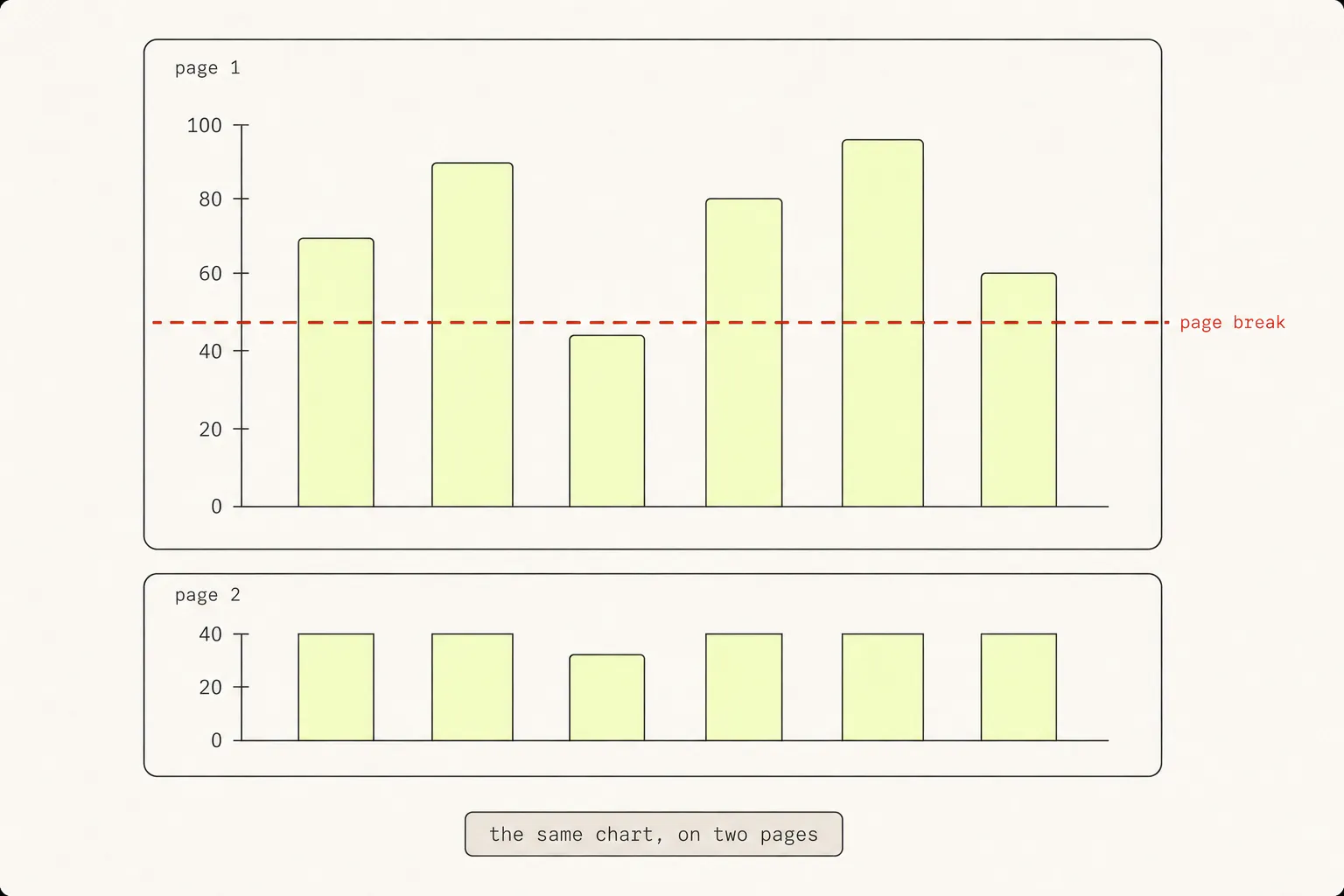
Chrome’s print engine breaks the document at whatever height the paper size dictates. Sites that care about this add CSS to prevent it:
break-inside: avoidkeeps an element whole, moving it to the next page rather than splitting it.break-before: pageforces a new page before an element — how a well-built site starts each section at the top of a sheet.
Most sites do not bother. Your options as a reader:
- Change the paper size. A2 or A3 in the print dialog gives you far fewer, taller pages, and often moves the break off the thing it was cutting.
- Change the scale. Printing at 70% fits more per page and shifts every break.
- Add the CSS yourself from the console before printing:
document.head.insertAdjacentHTML('beforeend', '<style media="print">figure,table,img{break-inside:avoid}</style>') - Give up and use a screenshot. If the layout matters more than the text, a continuous image has no page breaks to land badly.
File size, honestly
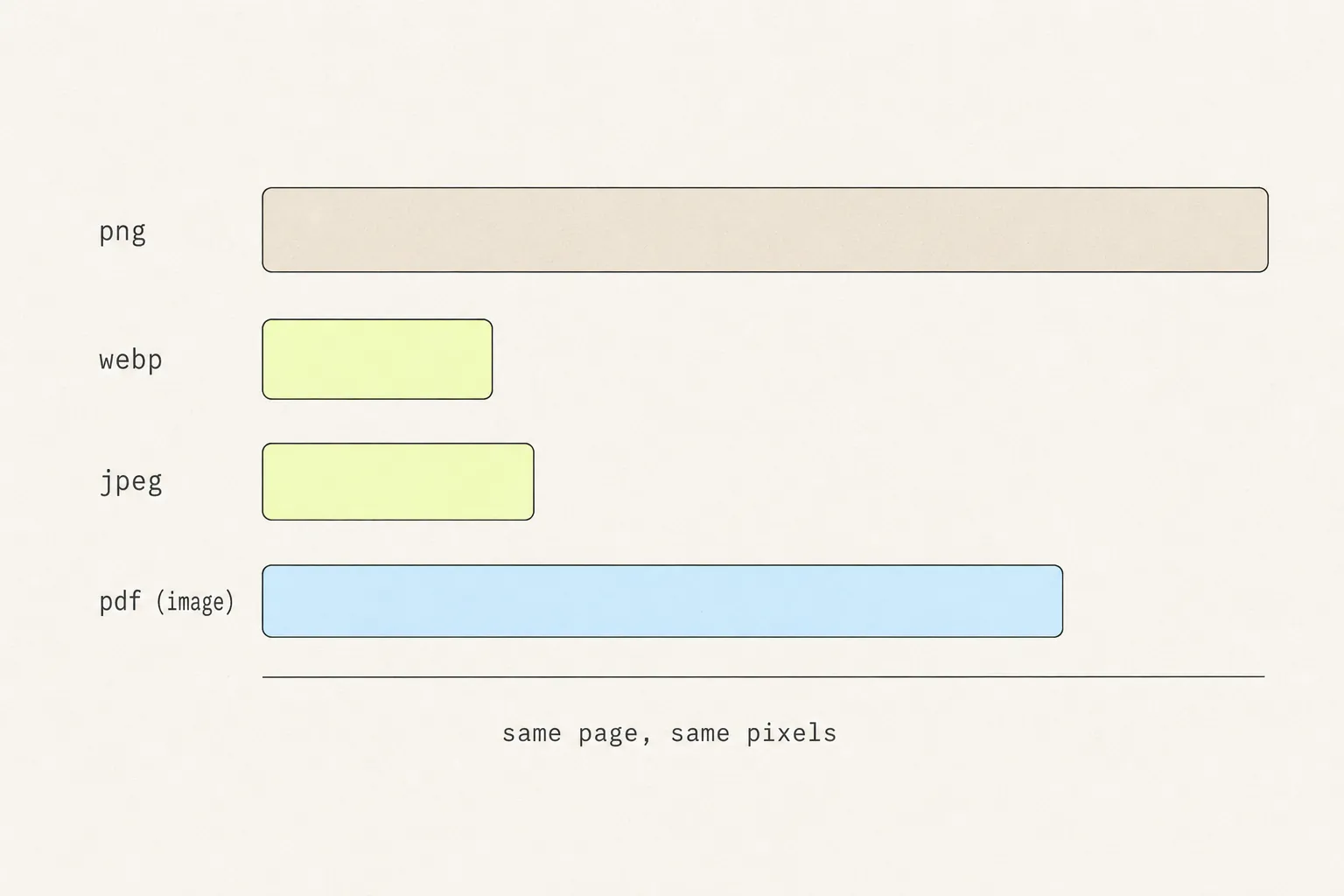
A full-page screenshot of a long marketing page at 1440px wide on a HiDPI display is roughly 2,880 × 20,000 device pixels — 57 million of them. As a PNG that is commonly 8 to 25 MB depending on how much flat colour the design uses. The same page printed to PDF is usually under 1 MB, because it is storing text and vector shapes rather than pixels.
Three practical consequences:
- Email limits. Many mail servers reject attachments over 25 MB. A long PNG can hit that on its own.
- Chat clients recompress. Several will convert a large PNG to JPEG on upload, which is how a crisp screenshot arrives blurry. Attaching it as a file rather than pasting it inline usually avoids this.
- An image-based PDF is not smaller. It is the image plus PDF structure. Choosing “PDF” for size reasons only helps if it is a real print-to-PDF.
The limits of each format
PNG
The format itself allows dimensions far beyond anything you will produce. The real constraints are the browser’s: a 2D canvas in Chrome is capped at 32,767 pixels on a side with a further limit on total area, so a very long capture gets downscaled to fit. That is usually the right trade — every part of the page at slightly lower resolution beats losing the bottom third. There is more on those ceilings in the article on captures that stop halfway.
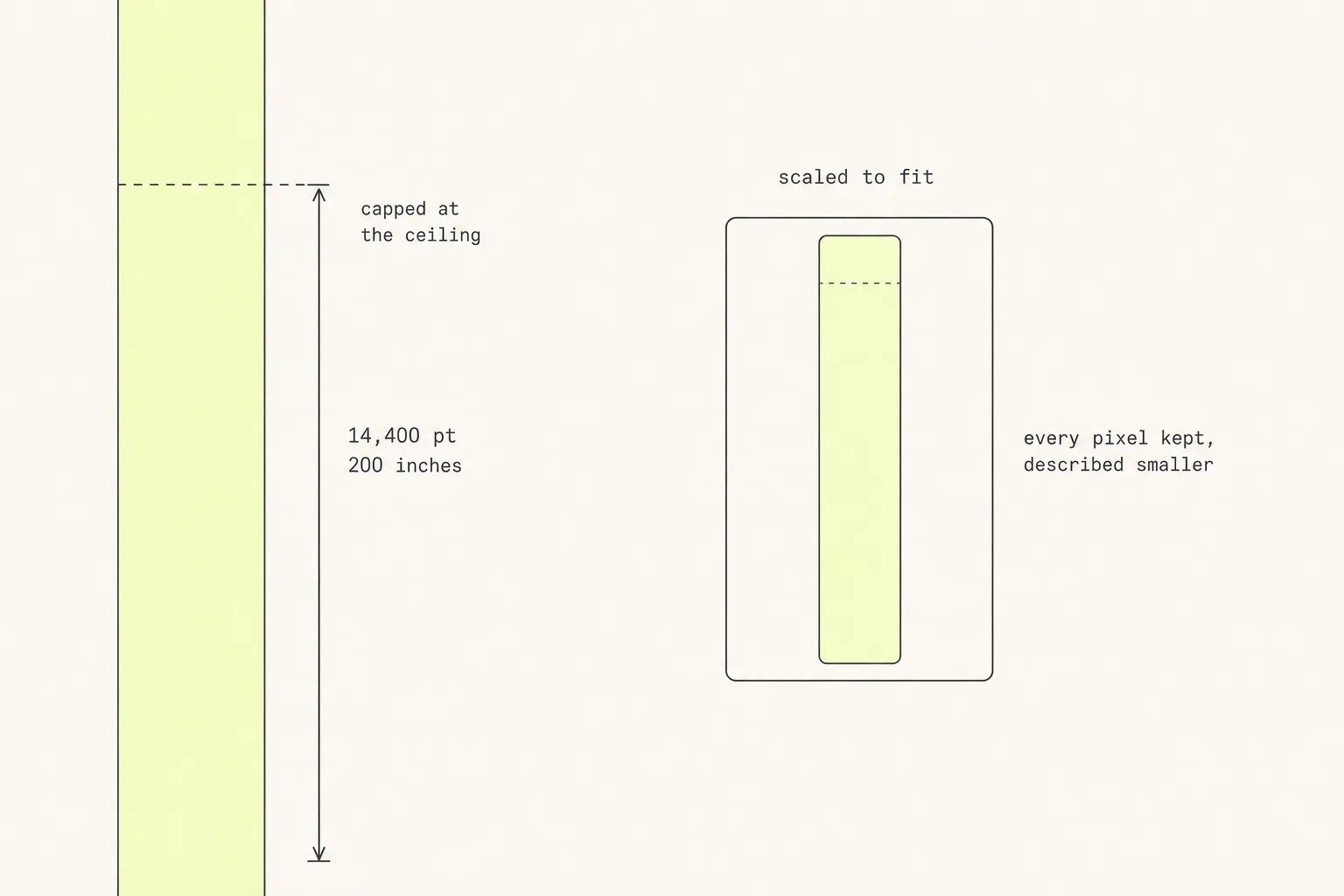
A PDF page is limited to 14,400 points — 200 inches — on a side. Since PDF user space is 72 units to the inch and CSS pixels are 96, that ceiling is about 19,200 CSS pixels tall. A screenshot longer than that has to be described at a smaller physical size: the image keeps every pixel it had, the page just declares itself smaller. Grabby does exactly this when wrapping a very long capture, so the PDF stays valid and nothing is cropped.
How to produce each one
A full-page PNG
Either Chrome DevTools (Cmd/Ctrl+Shift+P → type screenshot → Capture full size screenshot) or a scroll-and-stitch extension. The DevTools route is free and instant but does not scroll, so lazy-loaded images come back blank and very tall pages get truncated. The five Chrome methods compared covers the trade-offs in full.
A print-to-PDF
- Cmd+P or Ctrl+P.
- Set the destination to Save as PDF.
- Open More settings and turn on Background graphics. Without it, Chrome drops background colours and images — which on most modern sites removes the design entirely.
- Check the preview before saving. This is where you find out the site has a print stylesheet that hides the navigation.
A screenshot-to-PDF
Capture a full-page screenshot, then export it as a PDF. A tool that offers both from the same capture saves the round trip through an image editor — in Grabby the finished capture has Download PNG and Download PDF side by side, and the PDF is the same image wrapped in a single page sized to fit it.
The short answer
Ask whether anyone needs to read the file or look at it. Reading means text — print to PDF. Looking means fidelity — take a PNG.
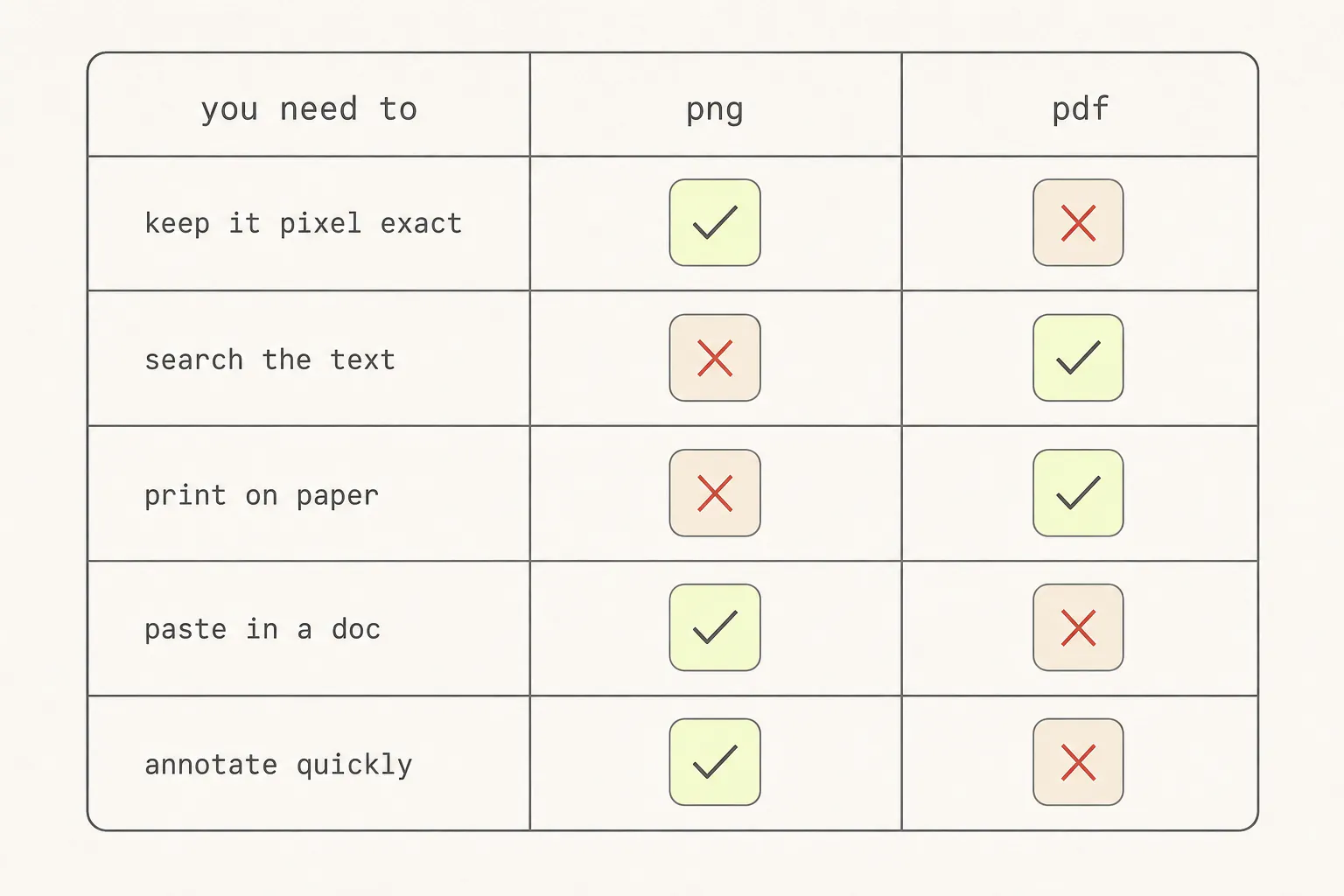
And when it genuinely matters — an archived record, a design sign-off — produce both. The PDF stays searchable, the PNG proves what the page looked like on the day, and neither takes longer than a minute.
Both of these are still pictures of a page, which is the right answer right up until someone has to rebuild what is in them. The wider comparison of capture formats adds the fourth option — capturing the page’s actual HTML and CSS — and explains when that beats either file.
Frequently asked questions
Is it better to save a webpage as PDF or PNG?
PDF if the text needs to be selectable, searchable, signable or printable. PNG if the file has to look exactly like the page — design reviews, bug reports, and anything you plan to annotate. When both matter, save both.
Why does my PDF look different from the web page?
Print-to-PDF re-runs the page layout for paper and applies any @media print rules the site defines. Many sites use those rules to hide navigation, drop background images and collapse columns. Turning on Background graphics in the print dialog restores colours and images; nothing restores a hidden navigation bar except capturing a screenshot instead.
How do I save a long web page as one single PDF page?
Take a full-page screenshot and export that image to PDF — the resulting document is one page as tall as the capture. Note that a PDF page cannot exceed 200 inches (14,400 points) on a side, so a very long capture is scaled to that ceiling. It keeps all its pixels; the page just describes them at a smaller physical size.
Can I make the text in a screenshot searchable?
Only by running OCR over it afterwards, which turns the picture into an approximation of its text. If searchable text is the requirement, print to PDF instead — the text is already there and it is exact, rather than a machine’s best guess at your typography.
Which format should I use for a web page going into a printed report?
Print to PDF, then place that in the report. A screenshot placed in a document gets scaled by the layout engine and prints soft, because a 2,880-pixel-wide capture on a 6-inch column is being asked to do something it was not sized for. If you must use an image, capture at the width it will be printed at.
Why is my screenshot blurry after sending it?
The client recompressed it. Several chat and email clients convert large pasted PNGs to JPEG to save bandwidth, which destroys exactly the sharp text and flat colour a screenshot is made of. Attach it as a file rather than pasting it inline, or share it as a link.
Keep reading
9 min read
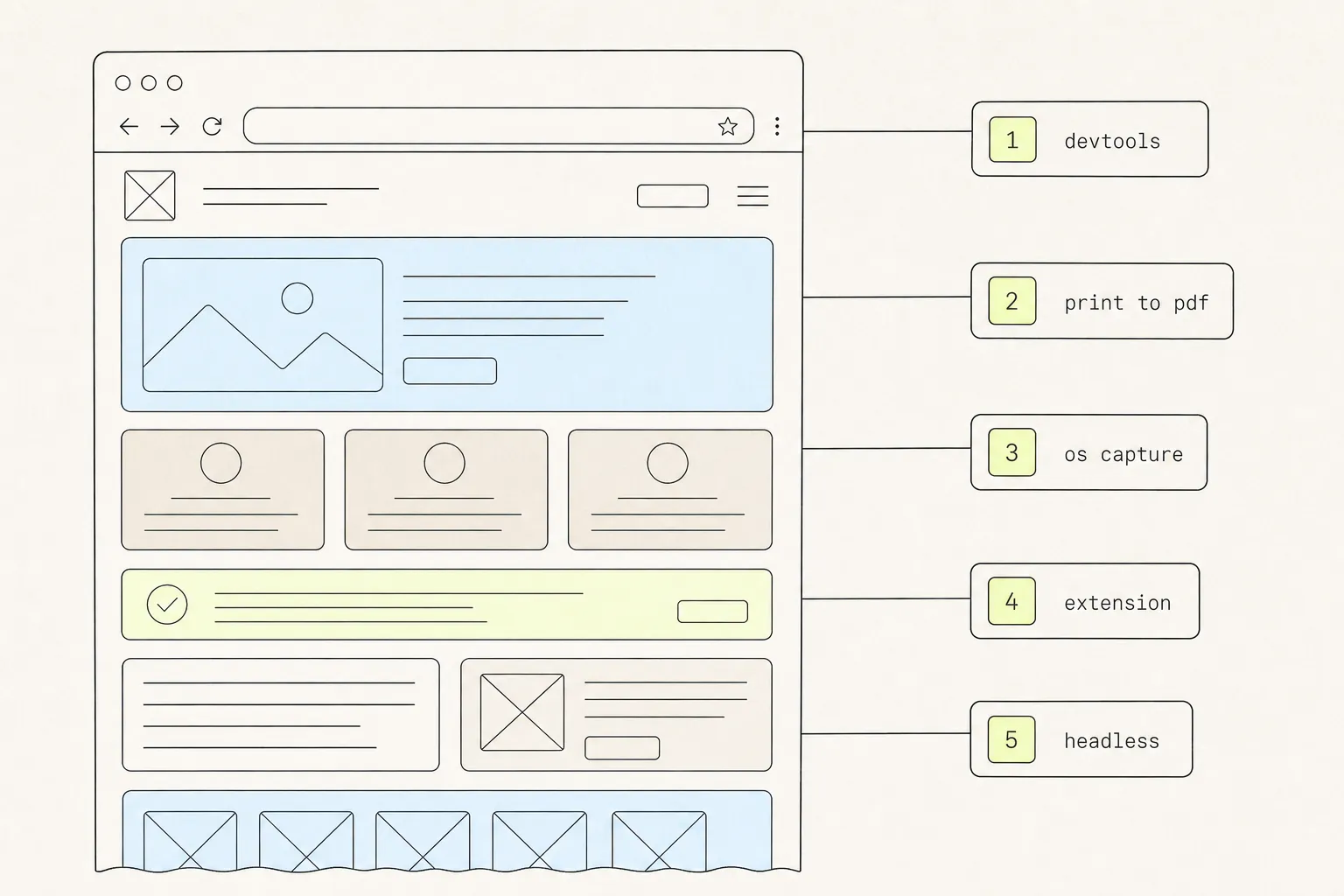
How to Take a Full-Page Screenshot in Chrome: 5 Methods, Tested
Chrome will capture an entire scrolling page without any extension at all. It just hides the command, and gives up on pages past a certain height. Here are five routes and where each one stops working.
9 min read
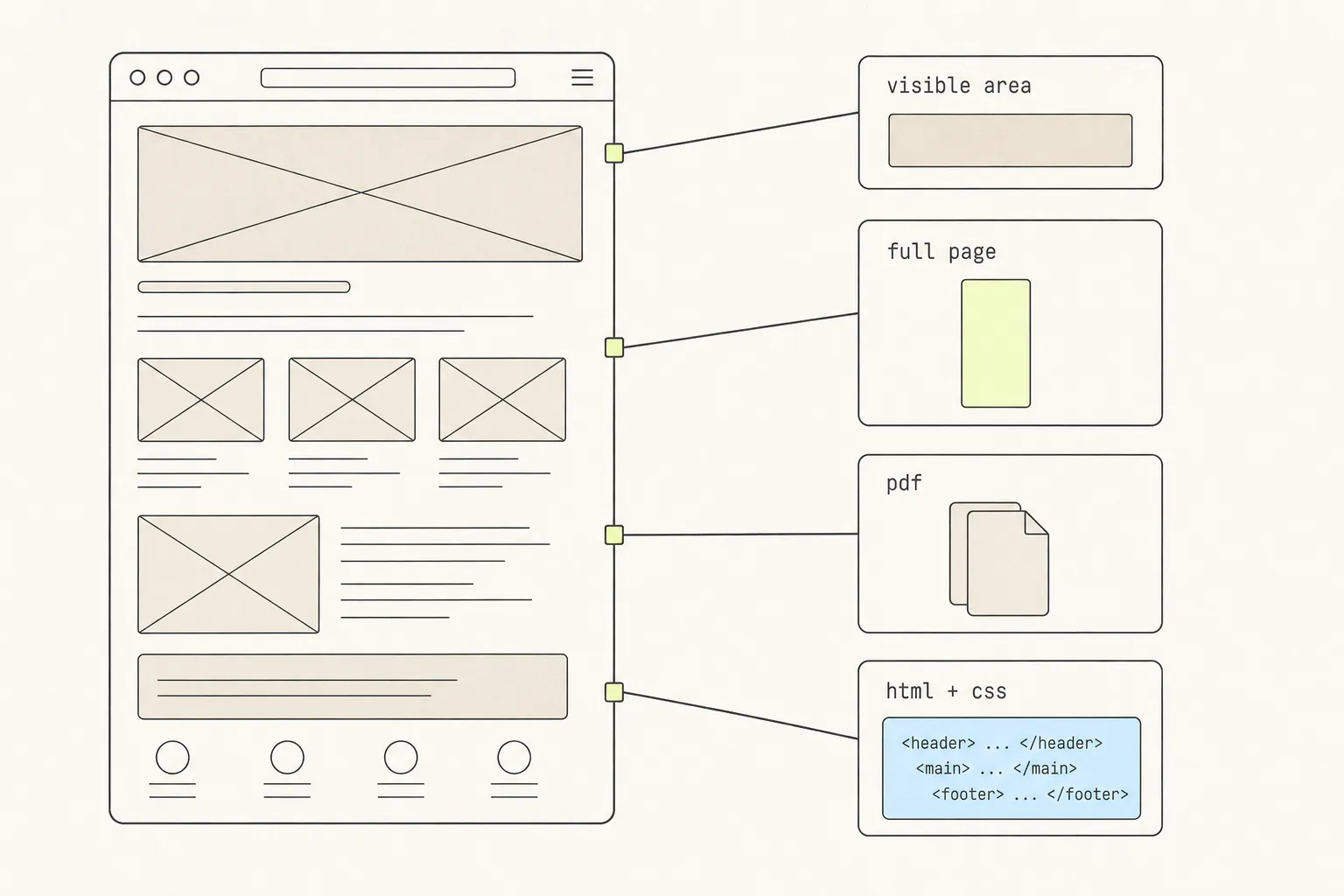
How to Capture a Web Page: Screenshots, PDFs, and Code
A screenshot, a PDF and a copied component are three different answers to “save this page”. Here is what each one keeps, what each one silently throws away, and how to choose.
9 min read
How to Annotate a Website Screenshot So Feedback Lands
Most screenshot feedback fails not because the arrow was badly drawn, but because the image did not say which thing, in what state, at what width. Here is the craft of it.