11 min read
Why Your Full-Page Screenshot Is Missing Content
Blank images, a header repeated down the page, a capture that stops halfway. Five causes — lazy loading, sticky elements, canvas limits, animation, virtualised lists — and the fix for each.
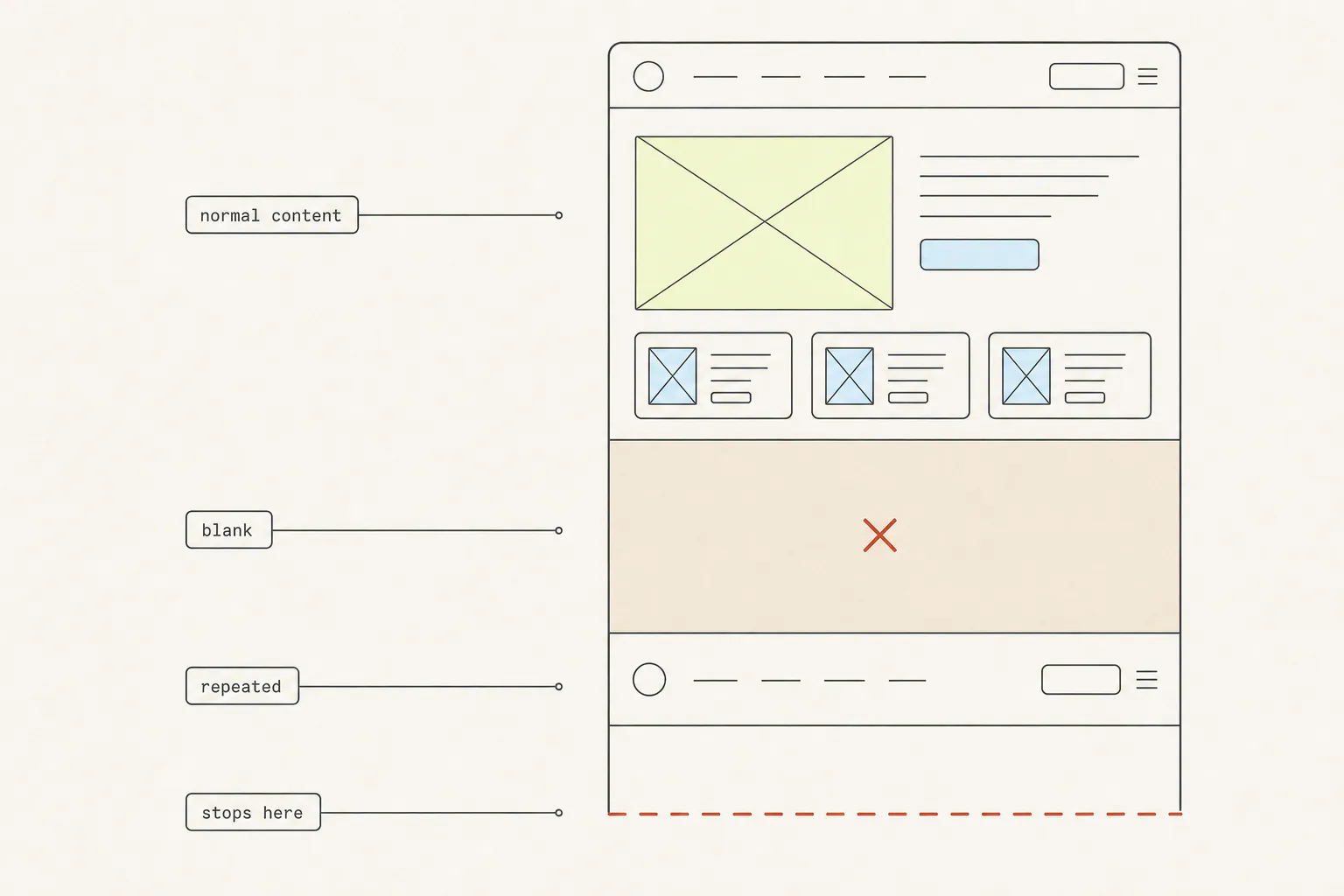
A full-page screenshot that comes back with holes in it feels like a broken tool. It usually isn’t. Each way a capture fails maps to a specific thing the page is doing — and once you can name which one you are looking at, four of the five fixes take about ten seconds.
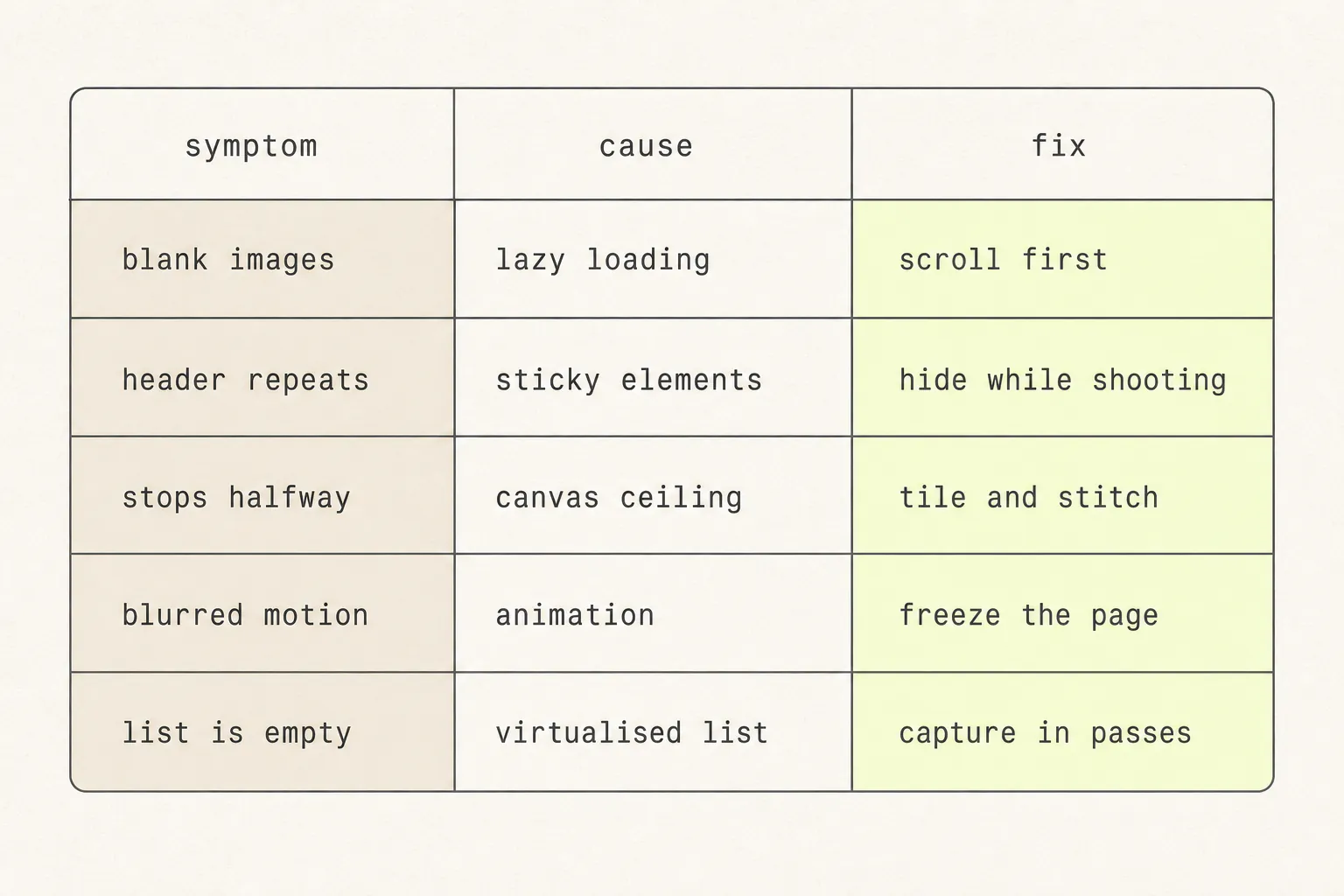
Start with the symptom
Every one of these has a different cause and a different fix, so it is worth spending ten seconds identifying which you have before changing anything.
Blank images: lazy loading
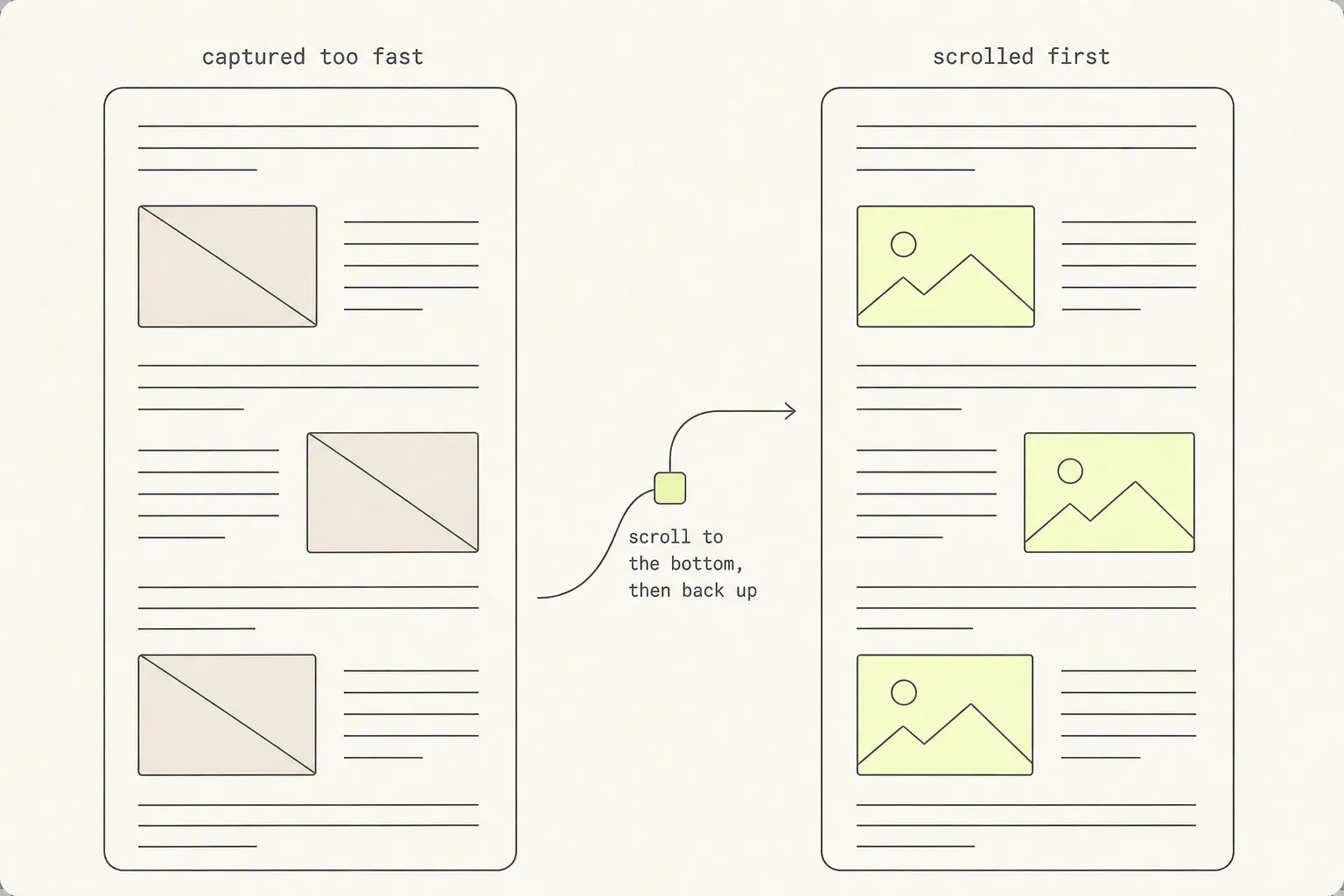
The single most common failure. You get a full-height capture with the right layout, correct text, correct spacing — and every image below the first screen is an empty box.
Why it happens
Modern pages do not download images they cannot see. Either the browser does it natively via loading="lazy", or the site uses an IntersectionObserver that swaps a placeholder for the real src when an element approaches the viewport. Both are triggered by the same thing: the element getting close to the visible area.
A capture method that resizes the viewport to the document height — which is what Chrome DevTools’ Capture full size screenshot does — never scrolls. Nothing ever approaches the viewport, so nothing ever loads, and the shutter fires on a page full of placeholders.
The fix
- Press End to jump to the bottom of the page, or hold Page Down until you get there.
- Wait for the images to appear. On a long page this can take several seconds.
- Press Home to return to the top.
- Now capture.
Do it slowly. Jumping straight to the bottom can skip elements in the middle whose observers never fire because they were never near the viewport for a frame.
Automating it? Scroll in steps rather than jumping, and give the page a beat to catch up:
await page.evaluate(async () => {
  const step = window.innerHeight;
  for (let y = 0; y < document.body.scrollHeight; y += step) {
    window.scrollTo(0, y);
    await new Promise((r) => setTimeout(r, 150));
  }
  window.scrollTo(0, 0);
});
await page.waitForTimeout(500);
await page.screenshot({ path: 'page.png', fullPage: true });
A header on every screen: sticky elements
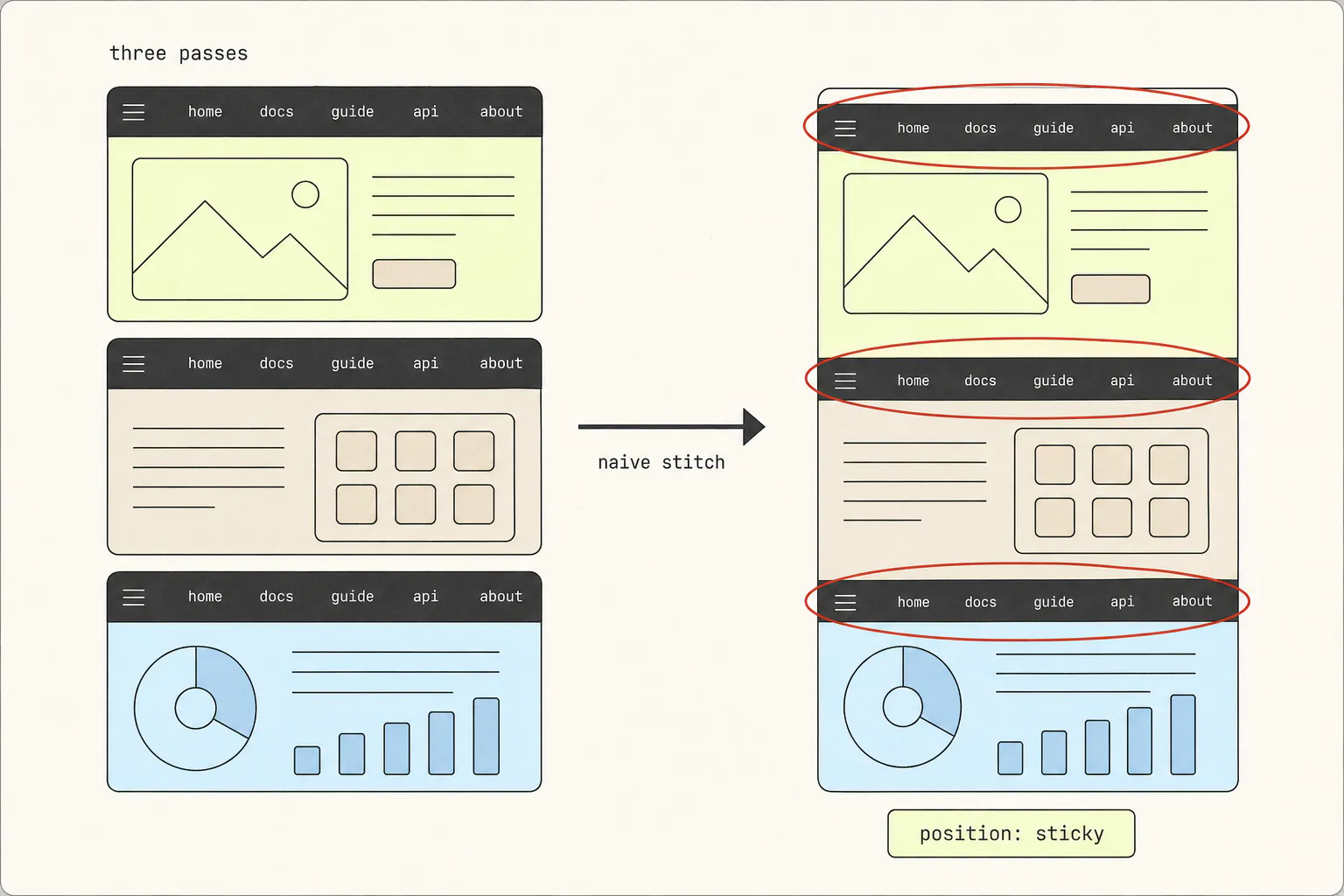
You get the whole page, but the navigation bar appears four times down the image, each time stamped over content it is hiding.
Why it happens
An element with position: fixed or position: sticky is anchored to the viewport rather than the document. During a scroll-and-stitch capture the viewport moves down the page, so the header dutifully comes along, and it is honestly present in every tile. The same applies to cookie banners, chat bubbles, back-to-top buttons and sticky table headers.
The fix
The element has to be hidden for the duration of the capture, or made to scroll with the page. Good extensions do this automatically — Grabby freezes fixed and sticky elements before the passes begin and restores them afterwards, so they appear exactly once, at the top, where they were.
If you are working around a tool that does not, run this in the console first:
// Neutralise fixed/sticky positioning for the length of the capture.
const pinned = [...document.querySelectorAll('*')].filter((el) => {
  const p = getComputedStyle(el).position;
  return p === 'fixed' || p === 'sticky';
});
pinned.forEach((el) => { el.dataset.gPos = el.style.position; el.style.position = 'absolute'; });

// After capturing, put them back:
// pinned.forEach((el) => { el.style.position = el.dataset.gPos || ''; });
Setting them to absolute rather than hiding them keeps the header visible once, at the top of the capture, which is usually what you want. Set display: none instead if you want it gone entirely — but be aware that removing a fixed header can shift the layout of pages that compensate for its height.
Stops halfway: the canvas ceiling
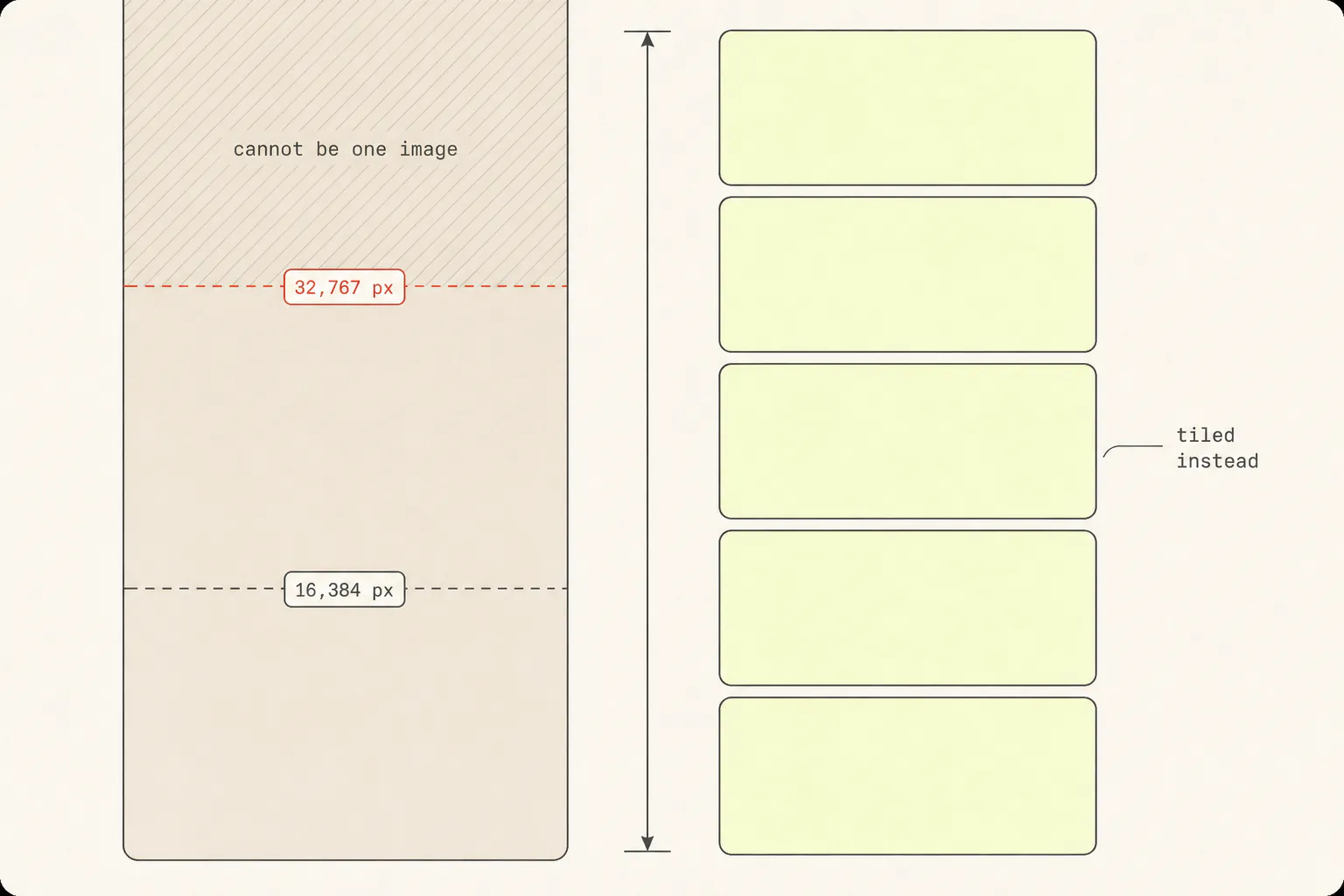
The capture is fine, and then it just ends — sometimes mid-sentence, sometimes with a band of solid colour running to the bottom.
Why it happens
There are two separate limits, and they bite at different stages.
- The render surface is capped by the compositor’s maximum texture size, commonly 16,384 pixels. Any method that renders the entire document in one pass — DevTools’ full-size capture,
fullPage: truein Puppeteer — hits this and truncates. It is discussed at length in Puppeteer issue #359. - The 2D canvas that a stitching tool composites into is capped at 32,767 pixels on a side in Chrome, with a further ceiling on total area. A tool that hits this has to downscale the result or refuse.
Both are in device pixels, not CSS pixels. On a HiDPI display where the device pixel ratio is 2, a 9,000px-tall page is already an 18,000px-tall image — past the first limit before you have scrolled anything.
The fix
- Use a scroll-and-stitch tool. Each photograph is only viewport-sized, so the render limit never applies. Only the final composite has to fit in a canvas, and that limit is twice as high.
- Capture in sections. Two or three captures of a genuinely enormous page are more useful than one that got truncated, and you can hand them over as a set.
- Accept a downscale. A tool that scales a 40,000px capture down to fit keeps every part of the page at slightly lower resolution — usually a better trade than losing the bottom third. Grabby does this rather than failing, so a very long page comes back complete.
Smears and mismatches: animation
Elements appear half-faded, a carousel shows two slides at once, or a scroll-triggered section is caught mid-transition with its text at 40% opacity.
Scroll-and-stitch captures take their photographs over one to sixty seconds. Anything moving during that window is in a different position in each tile. Scroll-triggered reveal animations are the worst offenders, because the act of capturing is what triggers them — and the shutter often fires before the transition finishes.
The fix
Disable animation for the duration. If your operating system has a “reduce motion” accessibility setting, turning it on makes well-built sites skip their transitions entirely. Otherwise, force it from the console:
const style = document.createElement('style');
style.textContent = `*, *::before, *::after {
  animation-duration: 0s !important;
  animation-delay: 0s !important;
  transition-duration: 0s !important;
  transition-delay: 0s !important;
  scroll-behavior: auto !important;
}`;
document.head.appendChild(style);
Setting durations to zero rather than animation: none matters: it snaps every animation to its end state, so reveal-on-scroll sections land fully visible instead of never appearing at all. A tool that freezes the page before capturing does the same thing for you.
Missing rows: virtualised lists
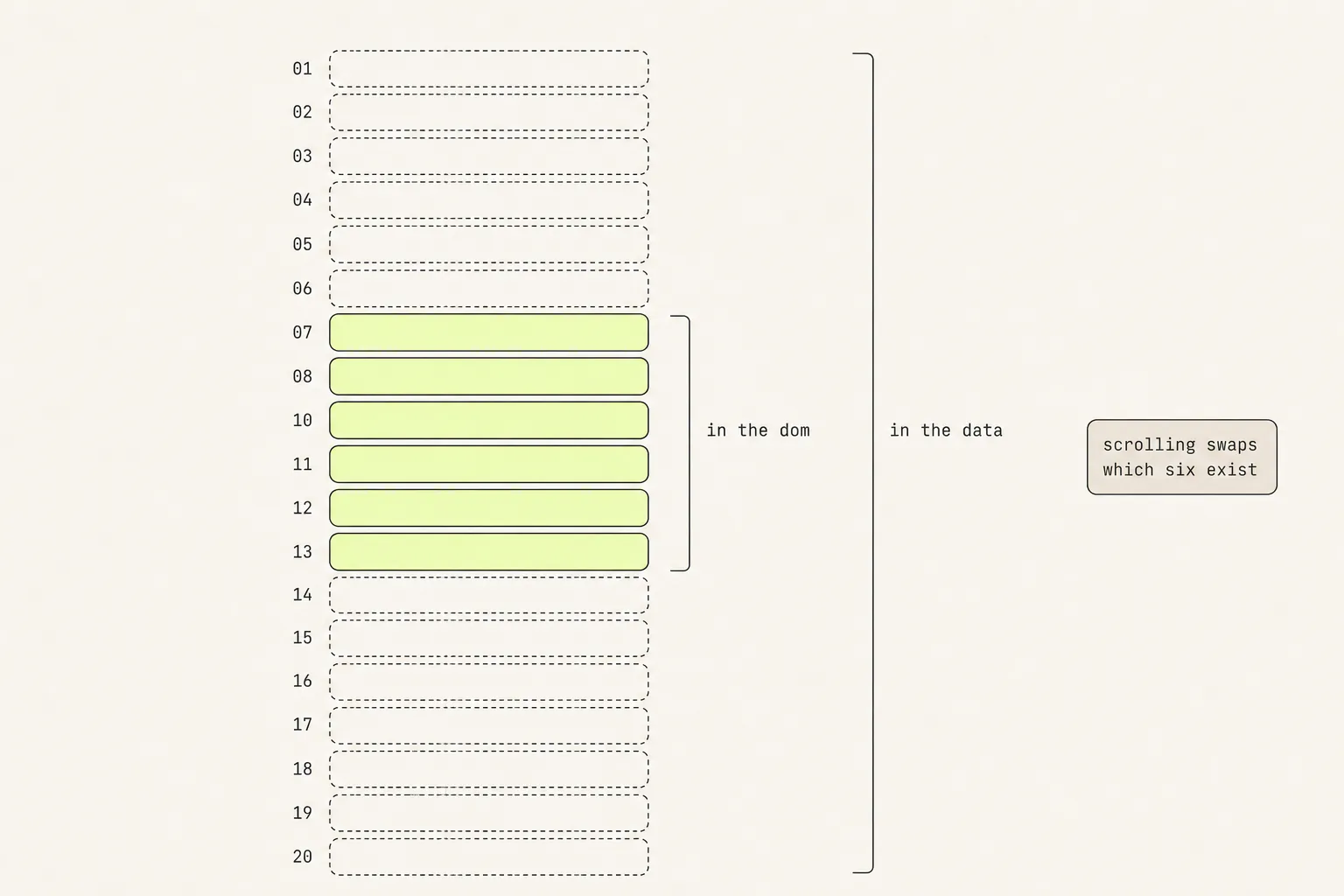
You capture a table of 5,000 rows and get twenty. Scrolling manually shows them all, so the data is clearly there.
Why it happens
Long lists in modern applications are virtualised: only the rows near the viewport exist in the DOM, and scrolling recycles the same handful of elements with different data. The page is never in a state where all 5,000 rows exist, so no capture method can photograph them — the resize-and-snap approach cannot, and neither can scroll-and-stitch, because rows are being destroyed behind it as fast as they are created ahead of it.
The fix
This one has no clean workaround. In rough order of preference:
- Use the application’s own export. If it can produce a CSV or a print view, that is a better artefact than a screenshot anyway.
- Increase the page size. Many tables let you show 100 or 500 rows per page; more rows per capture means fewer captures.
- Use the browser’s print view. Some applications render an unvirtualised list for
@media print, which means Cmd+P gets the whole table when a screenshot cannot. - Capture in passes and stitch them yourself, accepting the overlap.
Hairlines and double edges: seams
A faint one-pixel line running horizontally across the image at regular intervals, or a row of text that appears twice with a few pixels of offset.
This is a rounding bug in the stitcher. Tiles are photographed in device pixels and placed in document space, and the conversion between the two rarely lands on whole numbers. Round a destination up and you leave a gap; round a size down and you leave a gap. The robust approach is to round destinations down and sizes up, so neighbouring tiles can only ever overlap by a pixel — drawing identical content twice, which is invisible — rather than leaving a hairline of background showing through.
The other half is the last tile. Browsers clamp scrolling at the bottom of the document, so asking for a scroll of exactly one viewport near the end lands somewhere short of it. A stitcher that assumes its request succeeded misplaces the final tile by the difference. Re-reading the actual scroll offset after each step is what keeps the bottom edge clean.
A capture that works first time
Thirty seconds of preparation removes most of the failures above. On any page you have not captured before:
| Step | Fixes |
|---|---|
| Scroll to the bottom, wait, scroll back to the top | Blank lazy-loaded images |
| Dismiss cookie banners, chat widgets and newsletter pop-ups | Overlays stamped across the whole capture |
| Reset zoom to 100% with Cmd/Ctrl + 0 | Soft, low-resolution captures and unexpected layout |
| Turn on reduce-motion, or zero out animations from the console | Half-faded sections and mid-transition smears |
| Set the window to the width you actually care about | A desktop capture used to argue about a mobile bug |
| Check whether any long list is virtualised before trusting the capture | Silently missing rows |
And if a capture still comes back wrong, work from the symptom rather than the tool. The page is doing something specific, and it has a name.
It is also worth asking whether an image was the right artefact in the first place. A virtualised table and a component you intend to rebuild both defeat screenshots for the same underlying reason — the four ways to capture a page covers what each format keeps and what it quietly discards.
Frequently asked questions
Why are the images blank in my full-page screenshot?
They were lazy-loaded and never requested. The capture method rendered the whole document without scrolling, so no image ever came near the viewport and no IntersectionObserver fired. Scroll to the bottom of the page, wait for the images to appear, scroll back to the top, then capture.
How do I stop the header repeating in a full-page screenshot?
The header is position: fixed or position: sticky, so it is genuinely in every viewport photograph. Use a tool that hides fixed elements during capture, or set them to position: absolute from the console beforehand — that pins the header to the top of the document so it appears exactly once.
What is the maximum height of a full-page screenshot?
Two limits apply in Chrome. A single-pass render is capped by the compositor’s maximum texture size, commonly 16,384 pixels. A 2D canvas — which is what stitching tools composite into — is capped at 32,767 pixels on a side, with a further limit on total area. Both are device pixels, so a HiDPI display halves the page height you can capture.
Why does my screenshot show a cookie banner over everything?
Cookie banners are usually fixed-position overlays, so they behave exactly like a sticky header and appear in every tile. Dismiss the banner before capturing. If it reappears on every visit because the page is in a private window, accept or reject it once in a normal window and capture there.
Can I capture content inside an iframe?
Same-origin iframes capture normally, because they render as part of the page. Cross-origin iframes — embedded videos, third-party widgets, payment forms — are captured as whatever the browser paints, which is usually correct, but their internal scroll position cannot be controlled from the parent page. Scroll the iframe’s content to where you want it before capturing.
Does a broken capture mean the extension is at fault?
Usually not. Blank images, repeated headers and truncation are all consequences of how the page is built or how tall it is. Seams and misplaced final tiles, on the other hand, are the tool’s arithmetic. A quick test: capture the same page with Chrome’s own DevTools command. If both fail the same way, it is the page.
Keep reading
9 min read
How to Take a Full-Page Screenshot in Chrome: 5 Methods, Tested
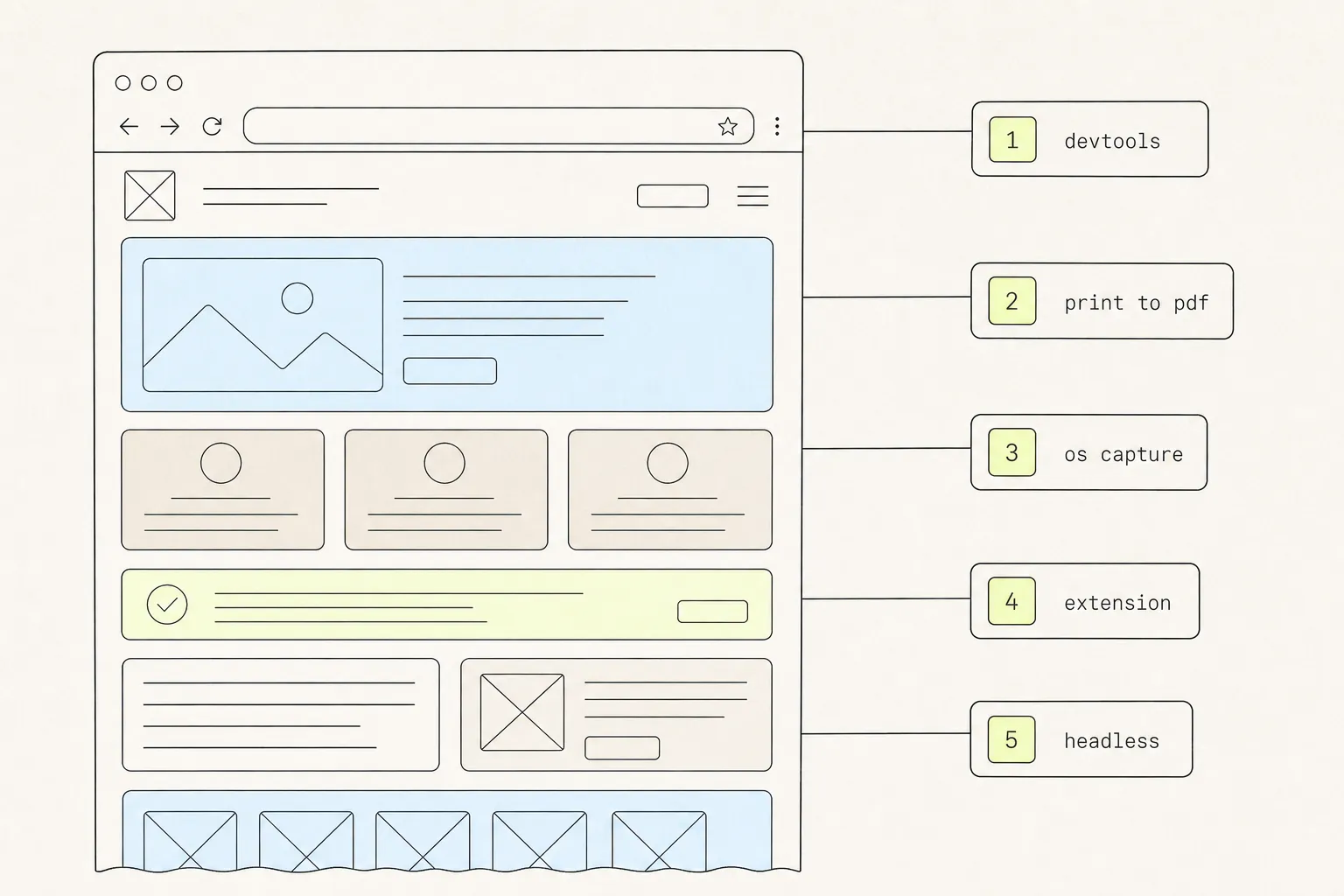
Chrome will capture an entire scrolling page without any extension at all. It just hides the command, and gives up on pages past a certain height. Here are five routes and where each one stops working.
9 min read
How to Capture a Web Page: Screenshots, PDFs, and Code
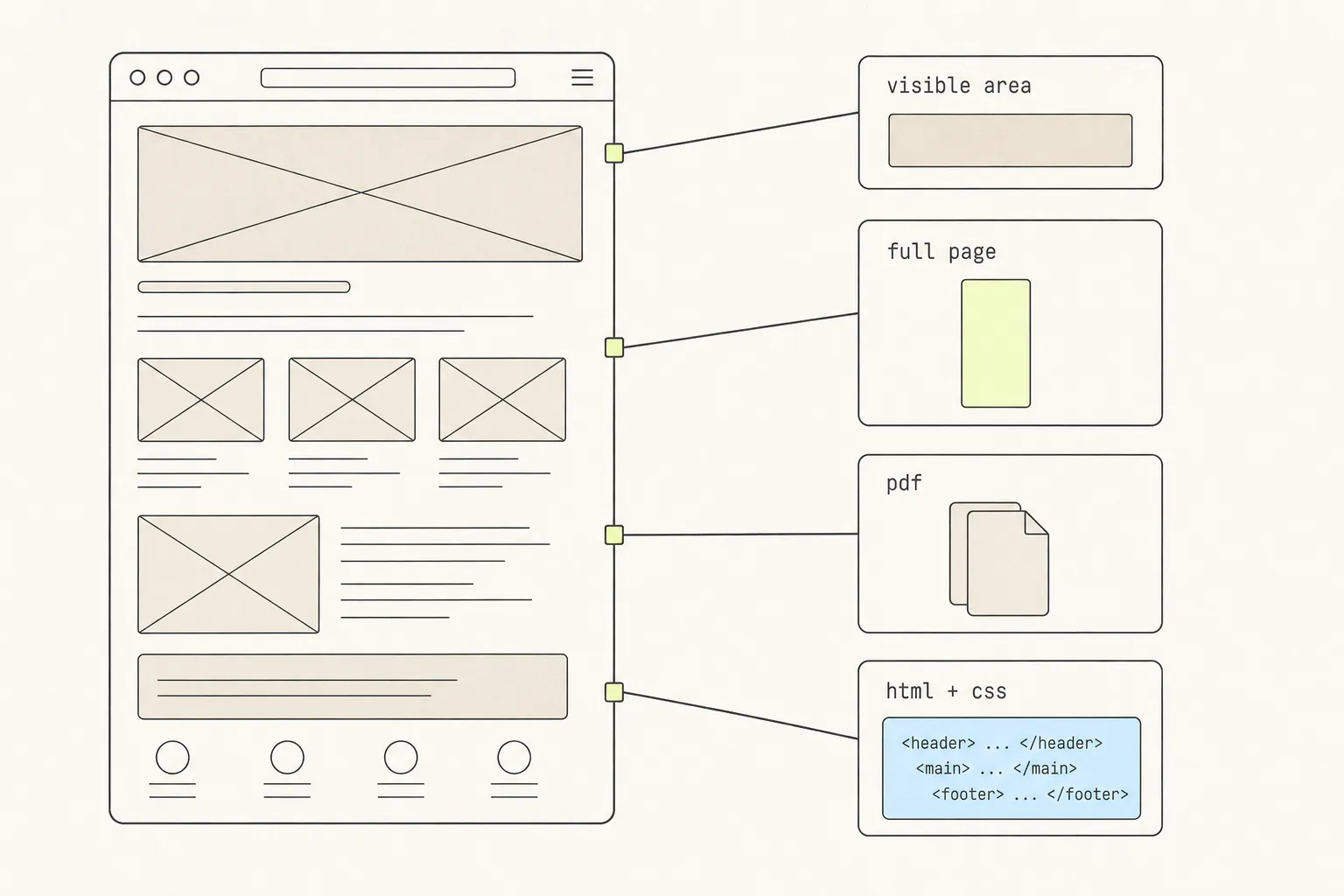
A screenshot, a PDF and a copied component are three different answers to “save this page”. Here is what each one keeps, what each one silently throws away, and how to choose.
8 min read
How to Screenshot a Hover State, Dropdown, or Animation
Transient UI is the one thing a screenshot key cannot photograph, because taking the screenshot is what destroys it. Three escalating answers, from a checkbox in DevTools to not screenshotting at all.