9 min read
How to Take a Full-Page Screenshot in Chrome: 5 Methods, Tested
DevTools, print-to-PDF, the OS screenshot key, extensions and headless Chrome — the exact steps for each, and the specific thing that breaks every one of them.
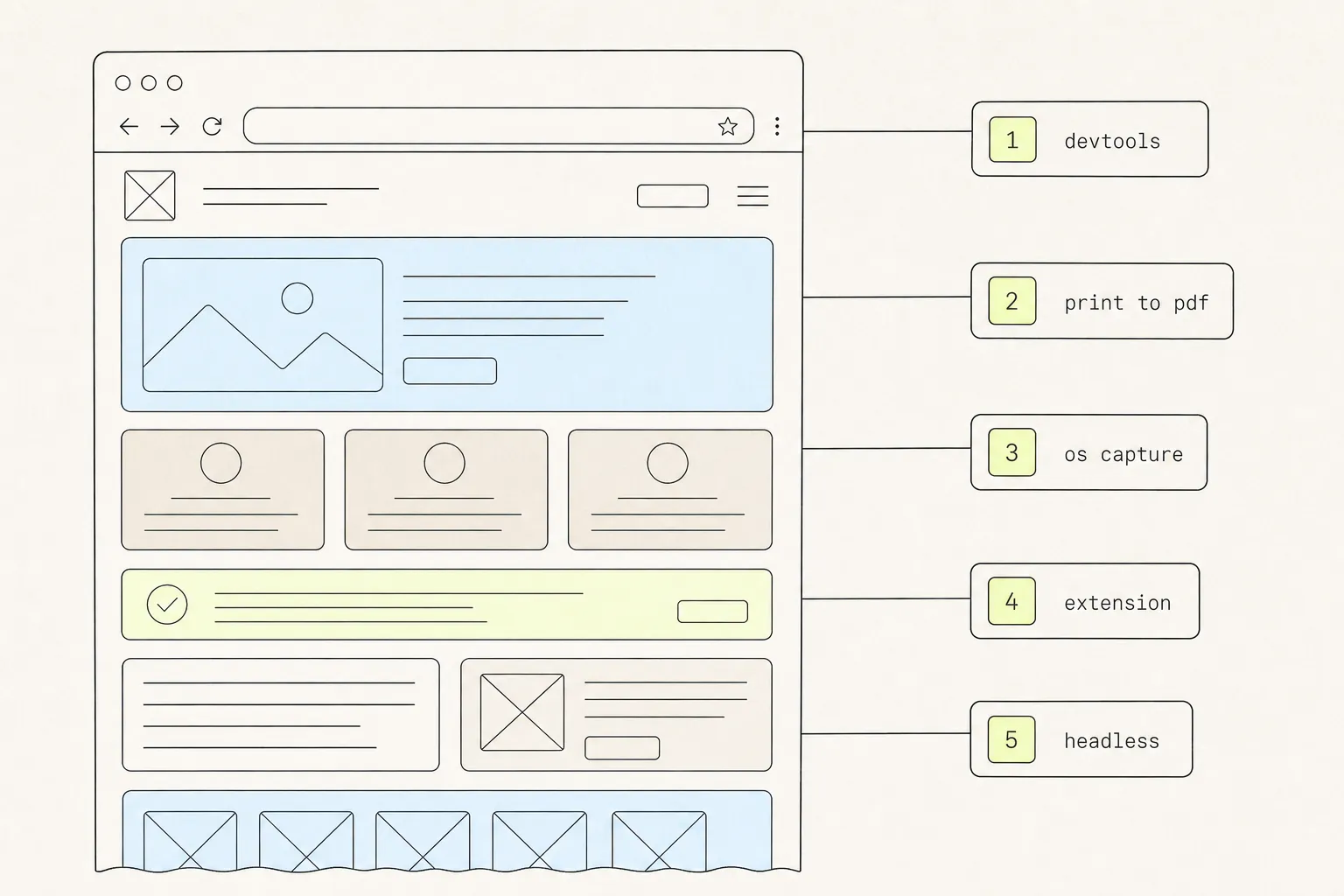
Chrome can screenshot an entire scrolling page on its own, with nothing installed. The command exists, it works well, and it is buried three keystrokes deep in a menu most people have never opened — which is why almost every article on this subject sends you straight to an extension. Here are all five routes, what each one actually produces, and the exact point at which each stops working.
1. Chrome DevTools — no install needed
Chrome’s developer tools include a command menu with four screenshot commands in it. One of them captures the whole document.
- Open DevTools: F12, or Cmd+Option+I on macOS, Ctrl+Shift+I on Windows and Linux.
- Open the command menu: Cmd+Shift+P on macOS, Ctrl+Shift+P elsewhere.
- Type
screenshot. Four commands appear. - Choose Capture full size screenshot. A PNG lands in your Downloads folder.
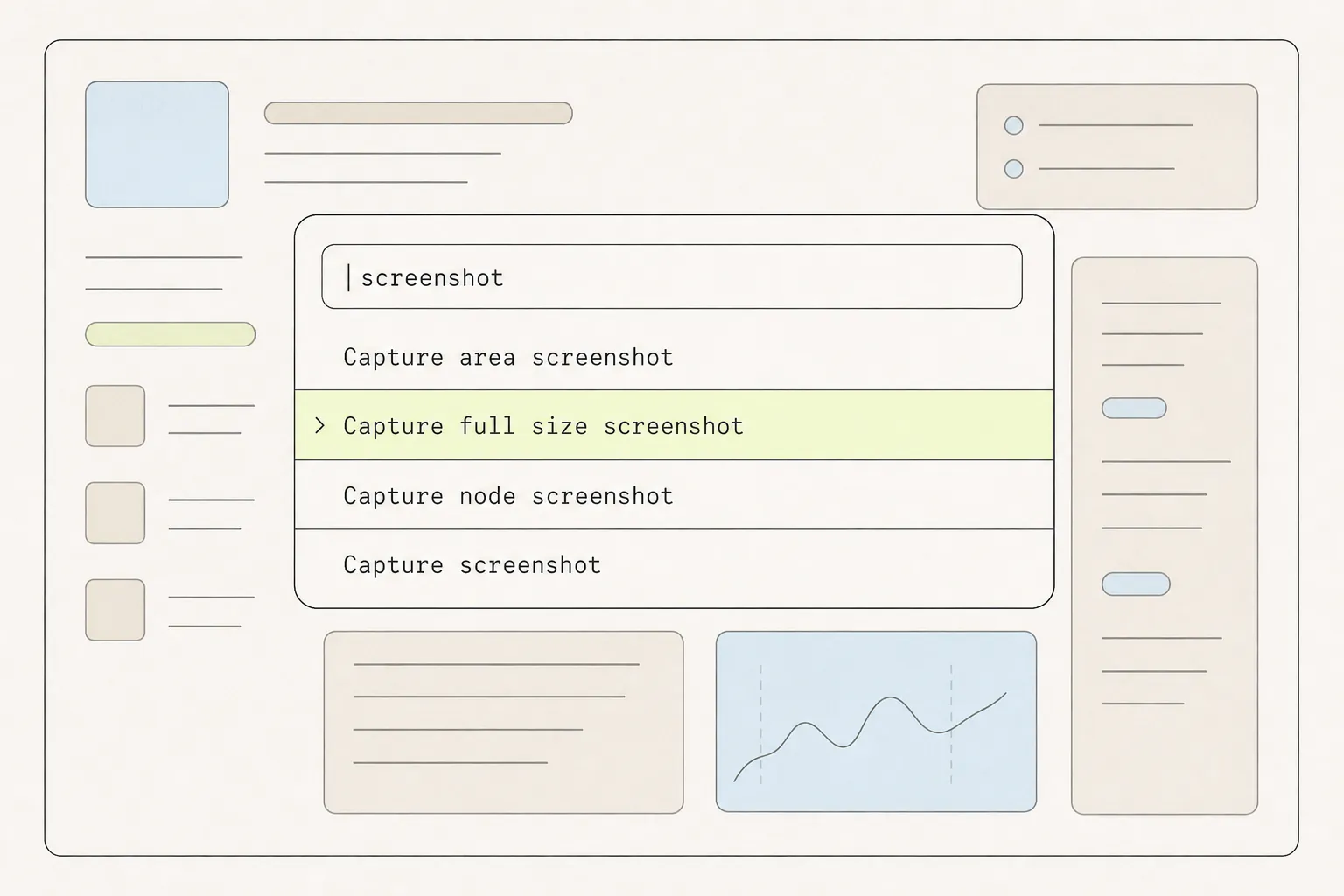
The other three are worth knowing:
- Capture area screenshot — drag a rectangle. Better than your OS equivalent because the coordinates snap to the page, not the screen.
- Capture node screenshot — select an element in the Elements panel first, and this captures exactly that element, cropped to its box. Ideal for a single card or a component.
- Capture screenshot — the visible viewport only.
Where it breaks
Capture full size screenshot does not scroll. It resizes the render surface to the full height of the document and paints once. That has two consequences.
First, there is a ceiling. Chrome’s compositor has a maximum texture size — commonly 16,384 pixels — and a page taller than that either comes back truncated or fails outright. This is a long-standing constraint discussed in Puppeteer issue #359 and on the Chromium headless-dev list. On a typical 1× display that is around eleven screens of content — long marketing pages and documentation reach it easily, and a HiDPI display halves the page height you can get away with.
Second, anything sized in viewport units misrenders. If the viewport is temporarily the full document height, a hero section written as height: 100vh becomes as tall as the whole page. This is a known Chromium issue, not something you can configure around.
2. Print to PDF — also no install
Cmd+P or Ctrl+P, then choose Save as PDF as the destination. Under More settings, turn on Background graphics — without it Chrome drops background colours and images, which on most modern sites removes roughly everything you wanted.
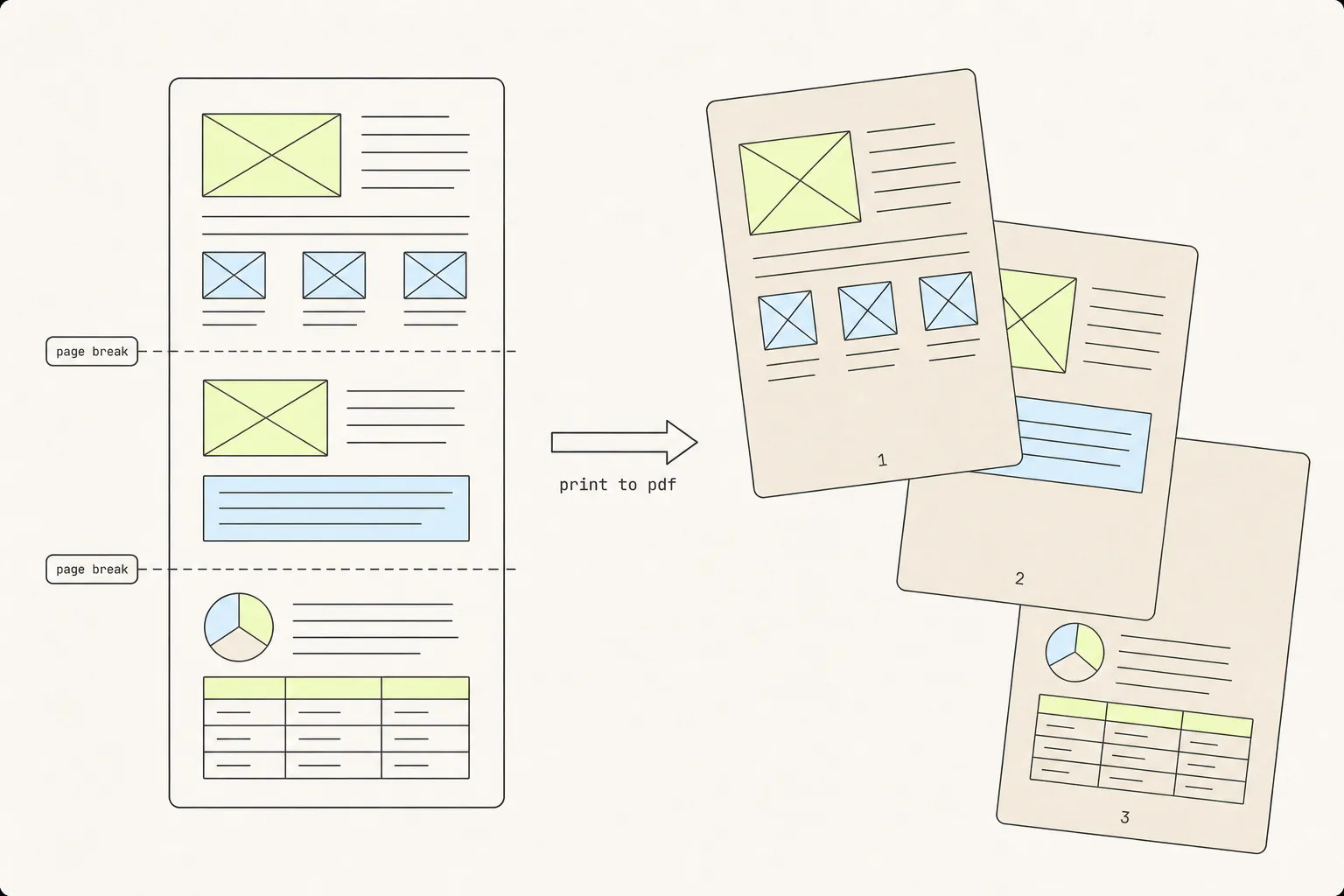
The output is a real document: selectable text, searchable, small, and it prints properly. The cost is that it is not a picture of what you were looking at. The page re-runs its layout at paper width, any @media print rules apply, and the content is chopped into pages at whatever height the paper size dictates.
Where it breaks
- Sites with a strong print stylesheet strip navigation, sidebars and imagery, so the PDF looks nothing like the page.
- Page breaks land wherever they land. A chart, a table or a card grid that straddles a break gets cut in half.
- Elements pinned with
position: fixedcan print on every page, or on none.
If you want the fidelity of a screenshot in a PDF container, that is a different operation — the PNG-versus-PDF comparison covers both routes and when each is right.
3. The OS screenshot key
Cmd+Shift+4 on macOS, Win+Shift+S on Windows. Instant, always available, and structurally incapable of capturing a full page: it photographs a region of your display, and the display only ever shows one viewport.
Worth using for a single component, a modal, an error message, or anything you can already see. Not worth fighting for a long page — stitching six manual screenshots together in an image editor takes longer than installing something.
4. A browser extension
Extensions solve the height problem by scrolling instead of resizing: photograph the viewport, scroll down one viewport, photograph again, repeat to the bottom, then composite the tiles into a single image.
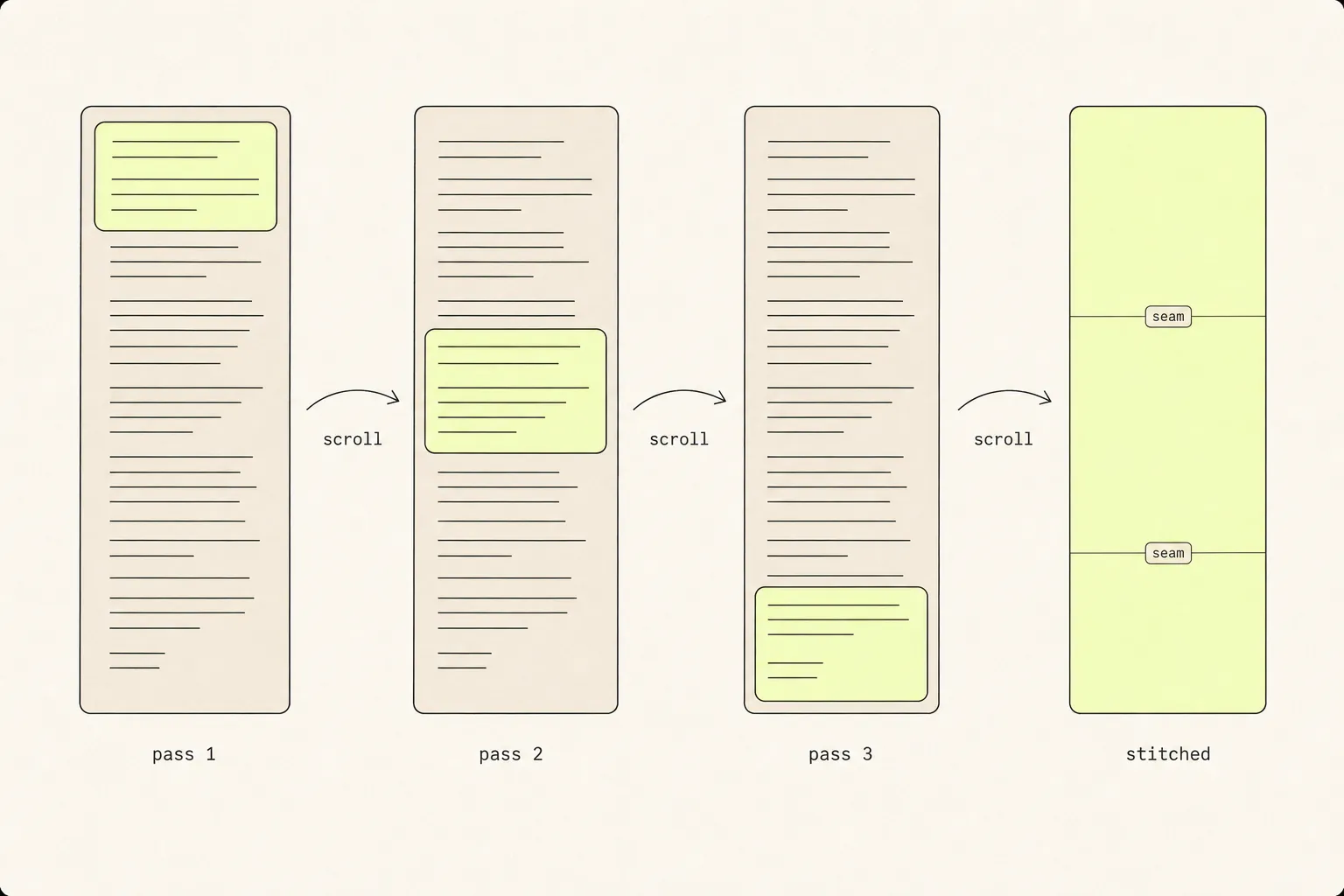
This approach has three real advantages over the built-in command:
- No height ceiling that matters. Each individual photograph is viewport-sized, so the compositor limit never applies to the capture itself. Only the final composite has to fit in a canvas, and that is a much higher bar.
- Lazy loading works. Scrolling is exactly the event that below-the-fold images and infinite feeds are waiting for.
- Viewport units stay correct, because the viewport is never resized.
The trade-offs are seams and duplicated sticky headers, both of which are solvable and both of which are covered in the article on broken full-page screenshots. There is also a real permissions question: a screenshot extension has to be able to read page content, so it is worth checking what a given one does with the image afterwards.
Grabby handles the full-page capture this way. It freezes animations and hides fixed elements before each pass, re-reads the real scroll offset after every step so the bottom edge lands cleanly, and opens the finished image in a new tab where you can crop, annotate, blur and export to PNG or PDF. The picture stays in that tab’s canvas — it is never uploaded, and closing the tab is what discards it. If you want to try it, Grabby is free on the Chrome Web Store.
5. Headless Chrome
If you need the same screenshot every night, or a thousand of them, drive Chrome from a script. Puppeteer and Playwright both expose a full-page flag:
import { chromium } from 'playwright';

const browser = await chromium.launch();
const page = await browser.newPage({ viewport: { width: 1440, height: 900 } });

await page.goto('https://example.com', { waitUntil: 'networkidle' });
// scroll to the bottom so lazy-loaded images actually request
await page.evaluate(() => window.scrollTo(0, document.body.scrollHeight));
await page.waitForTimeout(500);
await page.evaluate(() => window.scrollTo(0, 0));

await page.screenshot({ path: 'page.png', fullPage: true });
await browser.close();
The three lines around the scroll are the part people leave out, and they are why automated screenshots so often come back with empty image slots. The same texture-size ceiling applies here as in DevTools, so for very tall pages you still need to capture in clipped sections and composite them yourself.
Which one should you use?
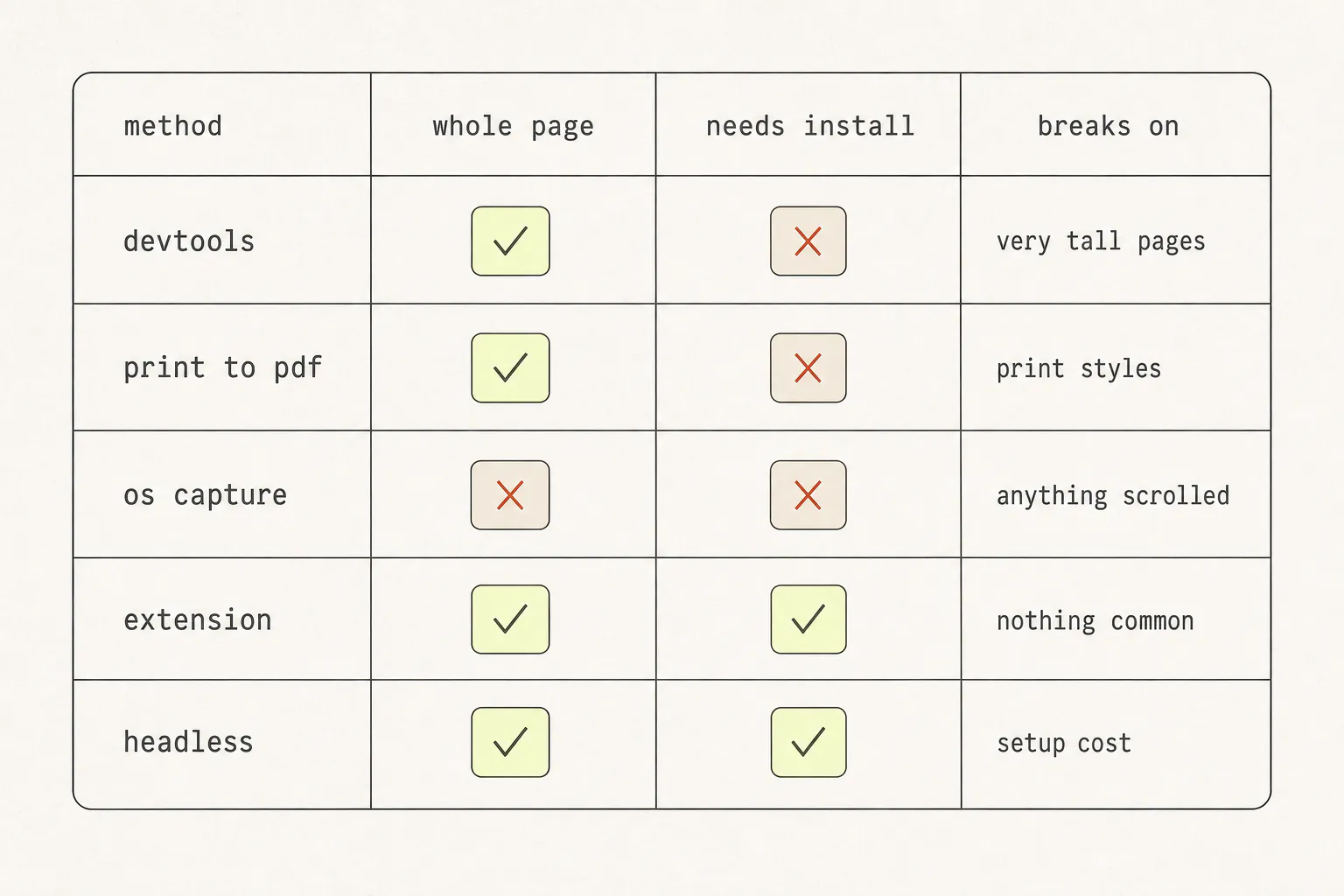
| If you... | Use |
|---|---|
| Need one screenshot right now, page is normal length | DevTools → Capture full size screenshot |
| Need it searchable, or someone has to sign it | Print to PDF with background graphics on |
| Are capturing a long page, a lazy-loaded page, or capturing regularly | A scroll-and-stitch extension |
| Need to crop, annotate or redact before sending | An extension with a built-in editor — the second app is where the workflow dies |
| Need it on a schedule or in CI | Headless Chrome via Playwright or Puppeteer |
Getting a sharp capture
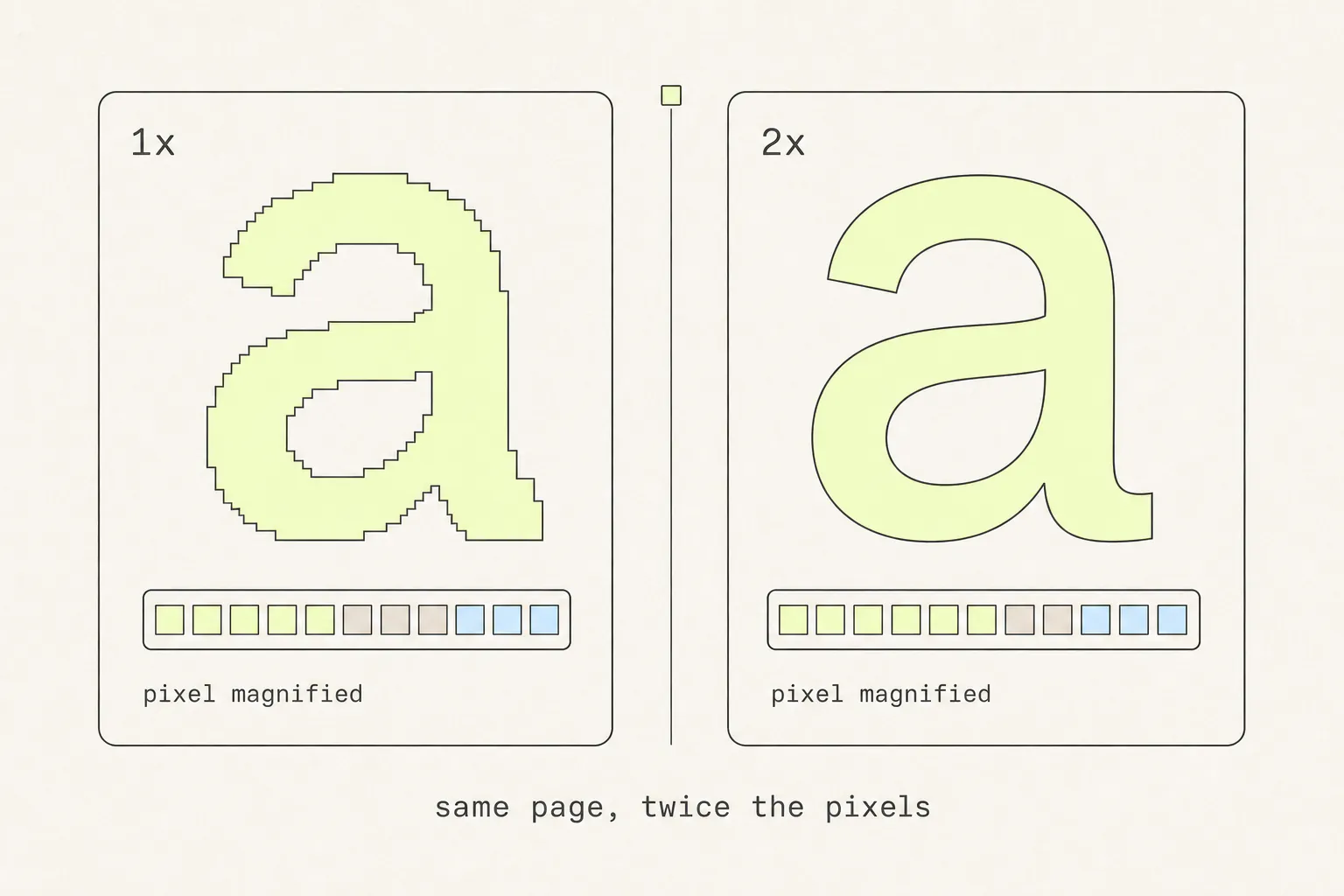
A full-page screenshot that comes back soft or pixelated is almost always a device-pixel-ratio problem. A capture taken on a standard display holds one image pixel per CSS pixel; on a HiDPI display it holds two, which is four times the data and four times the sharpness when someone zooms in.
- Reset browser zoom to 100% before capturing. Cmd+0 or Ctrl+0. Zoom changes the effective ratio and can make a capture soft for no reason.
- Capture at the width you care about. Resize the window first, or use DevTools’ device toolbar to pin an exact viewport width. A capture at 1440px says nothing about the mobile layout.
- Do not upscale afterwards. Enlarging a 1× capture to 2× in an image editor adds file size and no detail.
- Save as PNG for interfaces. Screenshots of UI are flat colour and sharp text, which is exactly what PNG is good at and exactly what JPEG’s block artefacts ruin.
The short answer
For a one-off on a page of ordinary length, use DevTools — Cmd/Ctrl+Shift+P, type screenshot, pick Capture full size. It is free, it is already installed, and it takes four seconds.
For long pages, lazy-loaded pages, or any workflow where you screenshot more than occasionally, use a scroll-and-stitch extension. The height ceiling and the empty image slots are not problems you can configure your way out of with the built-in command — they are consequences of how it works.
And if an image is not actually what you need — if someone is going to file it, search it, or rebuild what is in it — a screenshot is one of four ways to capture a page, and often the wrong one.
Frequently asked questions
How do I take a full-page screenshot in Chrome without an extension?
Open DevTools (F12), open the command menu (Cmd/Ctrl+Shift+P), type screenshot, and choose Capture full size screenshot. The PNG saves to your Downloads folder. Scroll to the bottom of the page and back to the top first, or lazy-loaded images will be blank.
Why does my full-page screenshot stop partway down?
The page is taller than Chrome’s maximum texture size, commonly 16,384 pixels. The built-in command renders the whole document to a single surface, so once that surface exceeds the limit the capture truncates or fails. A scroll-and-stitch extension avoids this because each individual photograph is only viewport-sized.
Where do Chrome DevTools screenshots save?
To your default Downloads folder, named after the page, with no prompt. If nothing appears, check Chrome’s download settings for “Ask where to save each file” — with that on, the save dialog can open behind the DevTools window.
Can I take a full-page screenshot on Chrome for Android or iOS?
Not through DevTools, which is desktop only. On Android, Chrome’s share sheet includes a screenshot option with an “Expand” control that captures the scrollable page, and many Android launchers offer a scrolling screenshot of their own. On iOS, take a normal screenshot, tap the preview, and switch to the Full Page tab — it saves as a PDF rather than an image. Desktop extensions do not run on either mobile browser.
How do I screenshot just one element instead of the whole page?
Open DevTools, select the element in the Elements panel, then run Capture node screenshot from the command menu. You get exactly that element’s box with transparent surroundings. If you want the element’s code rather than a picture of it, that is a different job with different traps.
Does a full-page screenshot capture content inside a scrolling panel?
No. Full-page capture extends the document, not the inner scroll containers. A sidebar or table with its own scrollbar is captured at whatever position it happens to be in. Scroll that panel to the position you want before capturing, or take a separate capture for each state.
Keep reading
11 min read
Why Your Full-Page Screenshot Is Missing Content
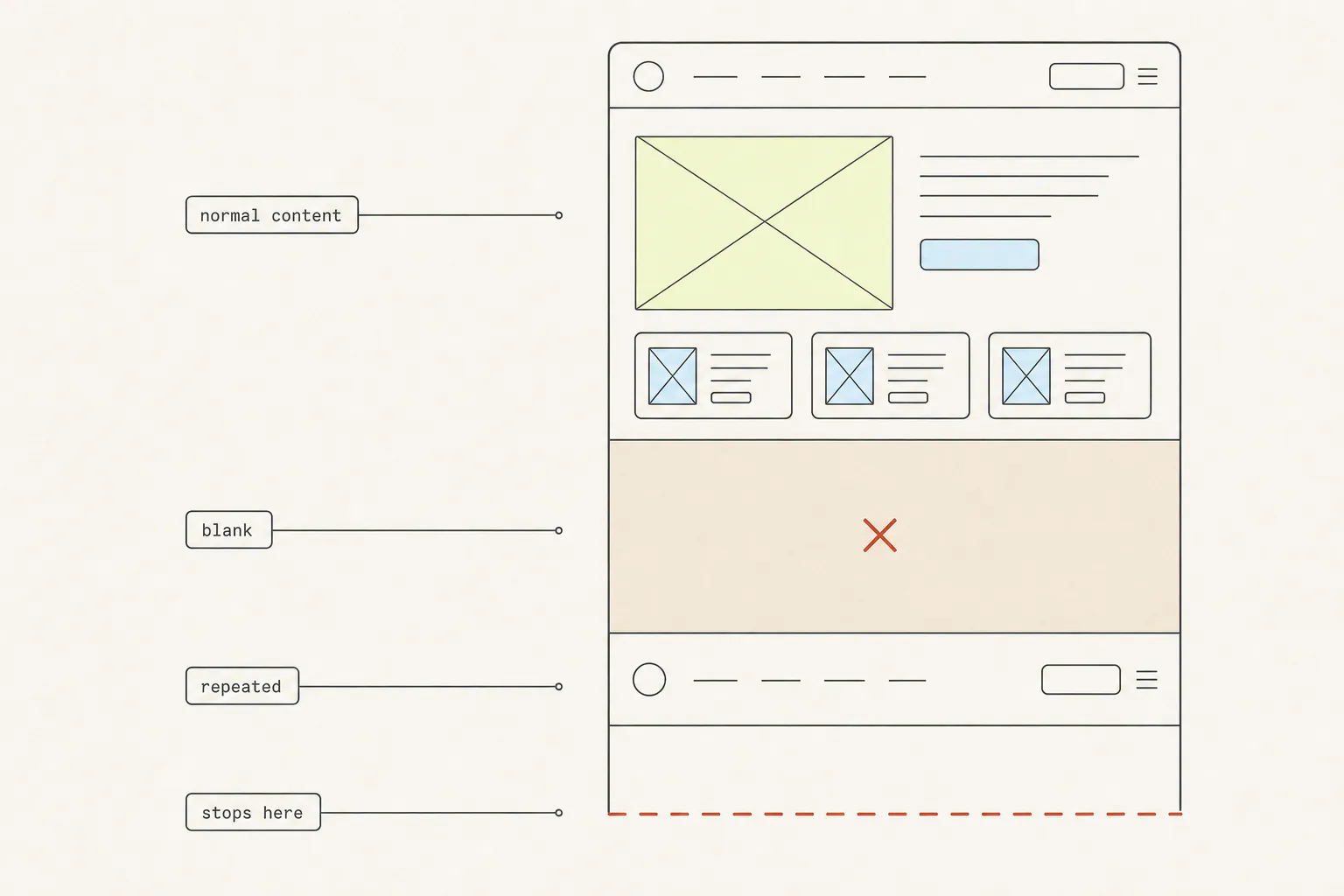
You captured the whole page and got holes in it. Every one of those holes has a specific technical cause, and four of the five are fixable in about ten seconds once you know which one you are looking at.
8 min read
Save a Web Page as PNG or PDF? How to Choose
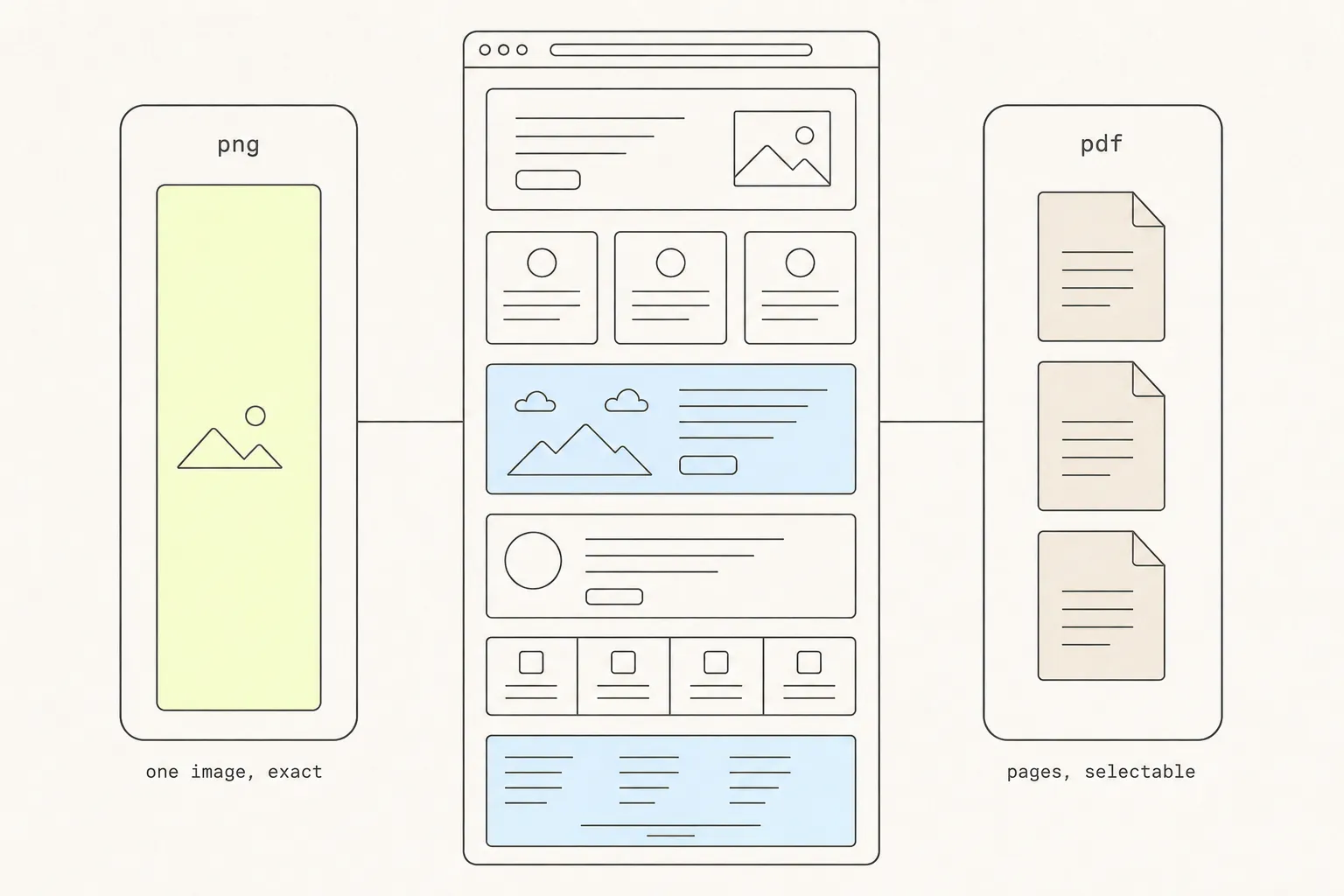
Both routes end in a file, and one of them is a picture wearing a document’s file extension. Knowing which you have determines whether anyone can search it, sign it, or print it.
9 min read
How to Capture a Web Page: Screenshots, PDFs, and Code
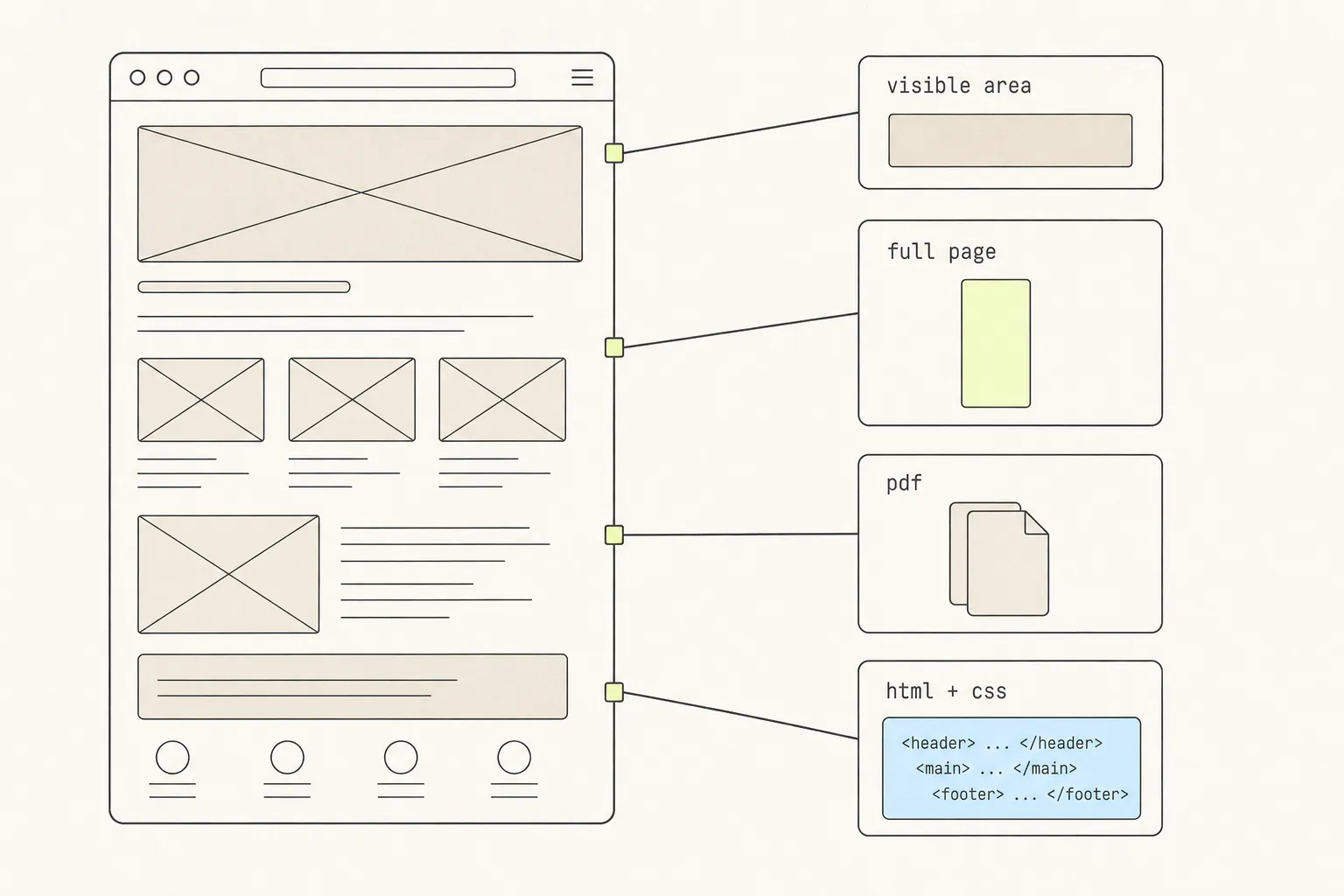
A screenshot, a PDF and a copied component are three different answers to “save this page”. Here is what each one keeps, what each one silently throws away, and how to choose.